How to Highlight and Annotate a PDF Textbook for Exam Prep
A real scenario: your professor sends a PDF of readings the night before the exam. Here is how to turn it into a revision-ready document in under five minutes — highlighting what matters, pinning sticky notes on the parts you keep forgetting, and keeping it all searchable later.
The situation
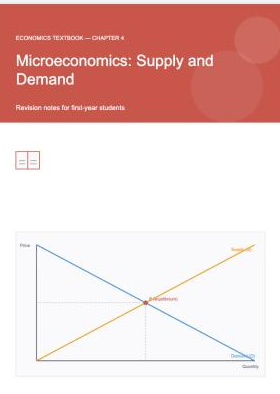
You just received a PDF — a textbook chapter, lecture slides, or a professor's reading packet — and the exam is tomorrow. The example below uses a real 7-page chapter, "Microeconomics: Supply and Demand" — Chapter 4, complete with a table of contents, charts, a data table and bullet lists, just like the reading your professor actually sends. Printing it out and using a highlighter pen means you lose the file the moment you misplace the paper, and you cannot search it later. Working directly on the PDF keeps your highlights and notes attached to the document forever, on any device.
Step 1 — Open the PDF in your browser
Go to the Kiwi PDF web editor and drag your file onto the home screen, or click Choose file from computer. Nothing uploads to a server for this — the file opens and stays in your browser.
Step 2 — Highlight the sentences you need to remember
Switch to the Annotate tab and pick the Marker tool (a yellow highlighter icon). Drag it across a sentence or a key term — here, the opening line of section 4.2's law of supply and demand — the same way you would with a physical highlighter, except you can change the color per topic (e.g. yellow for definitions, pink for dates) and undo a stroke that went crooked.

Step 3 — Pin a sticky note on what you keep forgetting
Click the Note tool and tap next to any highlighted line to drop a comment — write yourself a one-line reminder like "will be on the exam" or "re-read this definition". Notes show as a small icon on the page; tap it any time to re-read what you wrote.

Step 4 — Mark up tables and charts too
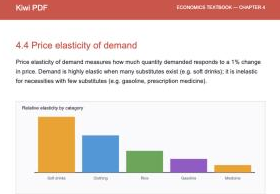
Textbooks are not just text. Section 4.3 has a data table of price, quantity demanded and quantity supplied, and section 4.4 has a bar chart comparing elasticity across categories. You can highlight a row inside a table, or use the Rectangle tool (under Markup) to circle an entire chart you need to remember.
Step 5 — Save and revise anywhere
Click Save. Your highlights and notes are embedded as standard PDF annotations, so the file opens correctly later in Acrobat, Apple Preview, or on your phone — you are not locked into one app to see your own notes.
Tips for exam revision
- Keep a consistent color code across all your course PDFs (e.g. yellow = definition, pink = date/number, green = example) so a glance tells you what a highlight means.
- Use the Sticky Note icon picker — a star for "likely on the exam" is faster to scan than reading every note.
- Re-open the file a day before the exam and skim only the highlighted lines — that is your real revision pass.
Open the editor and try it on your own PDF →