How to Compress an Oversized PDF Resume Without Losing Text Sharpness
A real scenario: you designed your resume and exported it as a PDF, but the headshot photo from your phone makes the file over ten megabytes — emailing it through a corporate mailbox (often capped at 10-25MB) bounces or gets rejected. Shrinking it down while keeping the text perfectly readable only takes a few seconds.
The situation
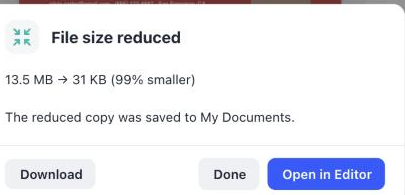
The example below uses a real resume PDF — full of personal details, work experience, education and skills — plus a very high-resolution headshot that looks exactly like an unedited photo straight from a phone. The file weighs in at 13.5 MB, while a normal resume should be well under 1MB.
Step 1 — Open the resume in your browser
Go to the Kiwi PDF web editor and drag the resume PDF onto the home screen, or click Choose file from computer.
Step 2 — Open Reduce File Size
Click the ••• button on the toolbar, then pick Reduce File Size. A dialog shows the current size along with 3 levels to pick from: Smallest (drops image resolution the most), Balanced (recommended — sharp enough to read and print), and Sharpest (keeps high quality, shrinks less).
Step 3 — Pick Balanced and compress
Pick the Balanced level, then click Reduce File Size. Within a few seconds, Kiwi PDF compresses the headshot down to a reasonable resolution — while every bit of text (which is vector text, not an image) is kept at 100%, with zero loss of sharpness no matter how much you compress.
Step 4 — Confirm the text is still sharp
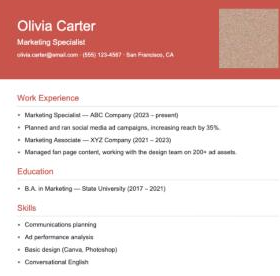
Click Open in Editor to review the compressed copy. All of the text — name, work experience, education, skills — is still perfectly crisp, exactly like the original. Only the headshot has a lower resolution.
Tips for compressing a resume correctly
- If your resume will be printed, pick Sharpest instead of Balanced so the headshot still looks good at a larger print size.
- Take your headshot with a regular camera app rather than a video-call screenshot — screenshots are usually already compressed, so they're rarely the cause of a bloated file.
- If your resume has no photo at all, it's probably already small — this step mainly helps when the file has a high-resolution image or chart.
Open the editor and compress your resume →