How to Merge a Quote, Contract and Resume into One PDF for a Client
A real scenario: you need to send a client a package made of a quote, a contract and your company profile — three separate PDFs. Attaching three files to one email looks unprofessional; merging them into a single PDF in the right order is cleaner and much easier for the client to follow.
The situation
The example below uses three real PDFs of the kind a freelancer or small company sends a client: a Quote (blue banner), a Contract (red banner), and a Company Profile (green banner). Each one currently sits separately in "My Documents".
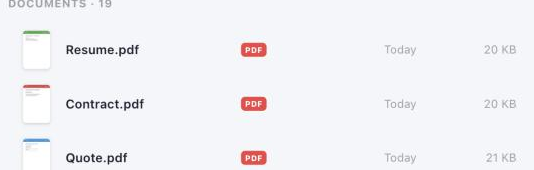
Step 1 — Open the file that should come first
Go to the Kiwi PDF web editor and open the file that should be first in the final package — here, the Quote. This matters because any file you add afterward is appended after the pages already open.
Step 2 — Open Manage Pages and add the rest
Click Manage in the bottom-left corner to open "Manage Pages", then pick Add Page › From other PDF…. Select the Contract to append it, then repeat once more for the Company Profile file. Each time, the entire file's pages are appended to the end of the current document.
Step 3 — Check the page order
Inside "Manage Pages" you can see every page in order — drag thumbnails to reorder if needed. Here is the result after merging all three: page 1 is still the Quote, page 2 is the Contract, page 3 is the Company Profile, exactly as planned.
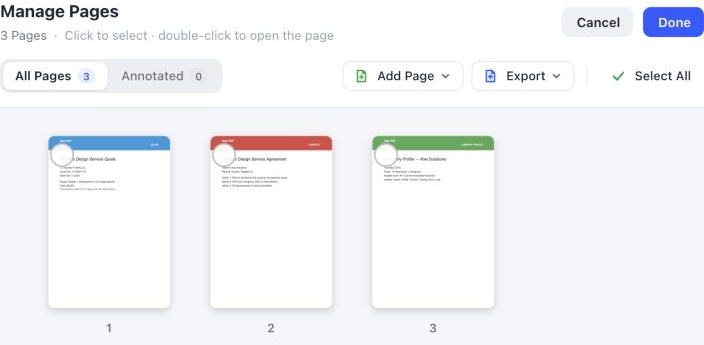
Step 4 — Save and send to the client
Click Done to close Manage Pages, then click Save. Now you only need to attach a single PDF to the client email, instead of three separate files that could easily be read in the wrong order.
Tips for a professional package
- Give the merged file a clear name (e.g. "Client Package - ABC Corp.pdf") instead of keeping the original quote's filename.
- Always scroll through every page after merging — it's easy to catch an accidentally duplicated or misordered file this way.
- If one of the files is unusually large (often from a high-resolution scanned image), compress it before merging so the email doesn't bounce for exceeding a size limit.
Open the editor and merge your own package →