How to Grade PDF Assignments: Circle Mistakes, Comment, Score
A real scenario: students submit their homework as a PDF, and you need to grade it quickly without losing anything you'd normally do on paper — circle mistakes in red pen, write comments in the margin, and fill in a score at the end. All of it works right in your browser, no printing required.
The situation
The example below uses a real 2-page assignment — a short essay titled "My Most Memorable Experience" from a 6th-grade student, complete with name, class and submission date, and a "Teacher's feedback" box plus a grade field at the end. This is exactly the shape of homework teachers receive every day now that classes submit online.
Step 1 — Open the student's submission
Go to the Kiwi PDF web editor and drag the assignment PDF onto the home screen, or click Choose file from computer. The file stays in your browser throughout grading.
Step 2 — Circle the mistake in red
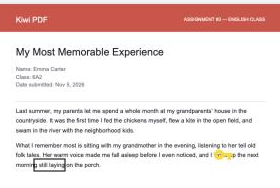
Switch to the Draw tab, pick the Rectangle tool, and set the border color to red. Drag a box around the word or sentence the student got wrong — just like circling it with a red pen on paper, except you can reposition, resize or delete it any time.
Step 3 — Pin a note explaining the mistake
Pick the Note tool, choose the flag icon (or whichever icon you use to flag mistakes), and place it next to the circled area. Type a short explanation of the error and how to fix it — the student taps the icon to read the full comment without the page getting cluttered.
Step 4 — Write overall feedback and fill in the score
Switch to the Insert (or Fill & Sign) tab and pick the Text tool. Click inside the "Teacher's feedback" box to type overall comments on the assignment, then click the "Grade" field to fill in the score — set the text color to red to make it stand out, just like a real grading pen.


Step 5 — Save and return it
Click Save, then send the file back by email or through your learning platform of choice. Every circle, note, comment and score is embedded directly in the file, so the student sees exactly what you graded, no matter which app they open it in.
Tips for faster grading
- Pick one color for mistakes (e.g. red) and another for things worth praising (e.g. green) so students instantly recognize the type of feedback.
- Use Multi-select to copy a rectangle-plus-note pair you've already made and paste it on a similar mistake elsewhere, instead of redrawing it.
- For a large class, keep a few common comments ready to copy-paste (e.g. "Good flow, watch your spelling") to speed through grading.
Open the editor and start grading →