How to OCR and Edit Text Directly on a Scanned PDF
A real scenario: you receive a receipt or form as a photo or scan, and spot a typo that was already there (or need to update one detail) — but the document is just an IMAGE, with no text layer to copy or edit. OCR lets Kiwi PDF "read" the text in the image and turn it into an editable region, right in its original spot on the page.
The situation
The example below uses a real delivery receipt as a genuine scanned image (no digitized text layer) — with a typo, "Mechanical keybaord" (letters swapped), that needs fixing to "Mechanical keyboard". This is a very common situation with administrative paperwork, hastily typed receipts, or older documents that only survive as a scan.
Step 1 — Open the scanned document in your browser
Go to the Kiwi PDF web editor and drag the scanned PDF onto the home screen, or click Choose file from computer.
Step 2 — Pick Edit Text to run OCR
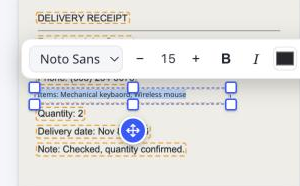
Switch to the Edit tab and pick the Edit Text tool. Tap any line of text on the page — Kiwi PDF automatically runs OCR, recognizes all the text in the image, and draws a box around each recognized line or word cluster, matching the font and size inferred from the original image (here, "Noto Sans").

Step 3 — Fix the exact word
Tap the line that contains the mistake to make it editable, then place your cursor exactly where you need it — just like regular text editing — to type in the correction and delete the wrong part. Kiwi PDF keeps the position and surrounding scanned-paper background untouched; only the text itself is updated.
Step 4 — Save
Click Save to finish. The corrected text stays exactly where it was on the "scan", so the document still looks just like the original — except for the part you fixed.
Tips for better OCR results
- The straighter and sharper your photo or scan, the more accurate OCR will be — avoid tilted or blurry images.
- For multi-page documents, run OCR page by page only on the pages you need to fix, to save processing time.
- After editing, zoom in to confirm the font and size match the surrounding, unedited text.
Open the editor and try OCR now →