How to Password-Protect a PDF Invoice Before Sending It Over Chat
A real scenario: you sell online, issue a PDF invoice with your bank account number so the customer can pay, then send it over chat or email. If it's sent to the wrong person or an account gets snooped on, your bank details are exposed right away. Password-protecting the file takes a few seconds and blocks that risk.
The situation
The example below uses a real sales invoice — with an itemized table, a total, and a "Payment details" section listing the bank name, account holder and account number. This is exactly the kind of invoice online shops send customers every day.
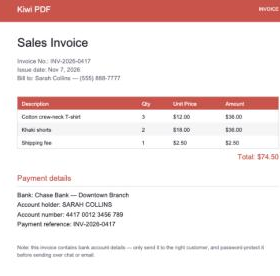
Step 1 — Open the invoice in your browser
Go to the Kiwi PDF web editor and drag the invoice PDF onto the home screen, or click Choose file from computer.
Step 2 — Open the Protect dialog
Click the ••• button on the toolbar, then pick Protect. The "Set Password" dialog explains clearly: the document will be encrypted when you save, and will require this exact password every time it's opened again.
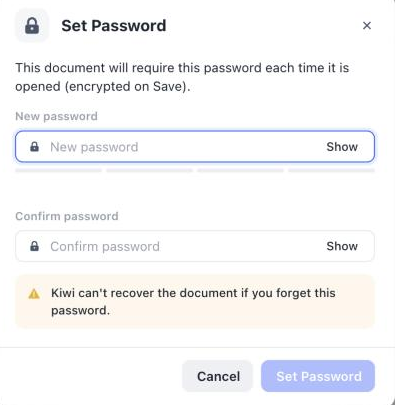
Step 3 — Type a strong password
Type a password into the New password field — Kiwi PDF shows a strength meter right away (Weak / Medium / Strong) so you know if it's secure enough. Type the exact same password into Confirm password, then click Set Password.
Step 4 — Save and send the password separately
After clicking Save, Kiwi PDF confirms right away: the document will be encrypted and will require the password every time it's opened.
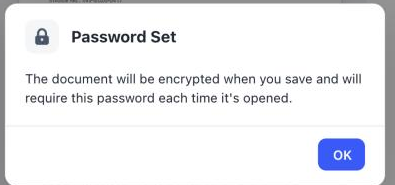
Send the invoice file over chat or email as usual, but send the password through a different channel — a text message, a phone call, or a separate chat — instead of writing it in the same message as the file. That way, even if the file is forwarded to the wrong person, a stranger still can't open it.
Tips for protecting invoices effectively
- Tie the password to something specific to the customer (e.g. the last 4 digits of their phone number) so it's memorable and different for every client.
- Don't reuse the exact same password for every invoice — if it ever leaks, every old invoice becomes readable.
- Remind your customer to save the password carefully — Kiwi PDF cannot recover the file if the password is forgotten.
Open the editor and set a password now →