How to Redact Sensitive Information from a PDF Before Sharing It Publicly
A real scenario: you're about to post an internship application form on a public noticeboard or online portal, but it still has your full Social Security Number and bank account number printed on it. Highlighting it in black isn't enough — the text is still there underneath, selectable and copyable. Redaction in Kiwi PDF actually destroys it.
The situation
The example below is a one-page application form with a name, date of birth, address, phone number — and two fields that should never go public: the SSN and the payroll account number. A note at the bottom even reminds the applicant that this exact copy will be posted publicly.
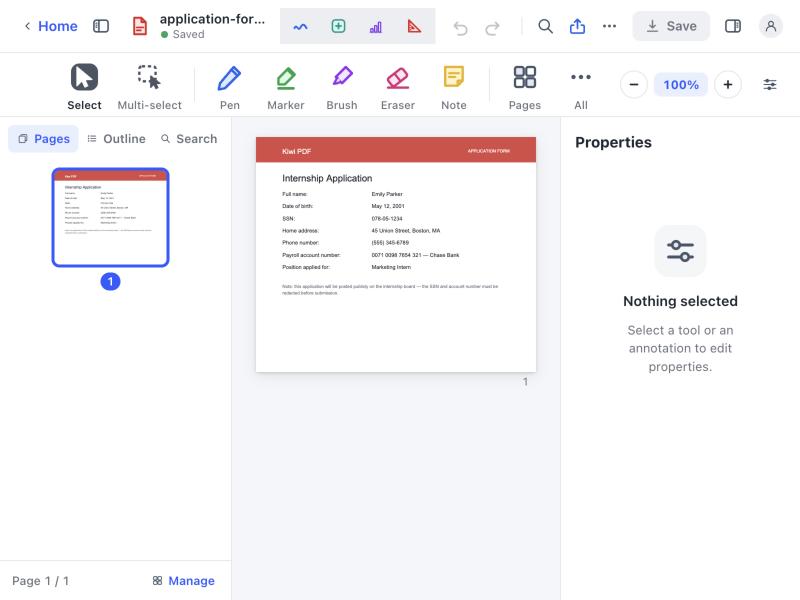
Step 1 — Open the form in your browser
Go to the Kiwi PDF web editor and drag the PDF onto the home screen, or click Choose file from computer.
Step 2 — Select the Redact tool
Open the full tool list (the ••• / "All" button) and search for Redact, under the Edit category. Redact is a Premium tool — it's the only way in Kiwi PDF to permanently remove content rather than just cover it visually.
Step 3 — Draw a black box over each sensitive field
With the Redact tool active, drag a black rectangle directly over the SSN, then another over the payroll account number. You can resize or redraw a box at any time before saving — nothing is destroyed yet at this stage.
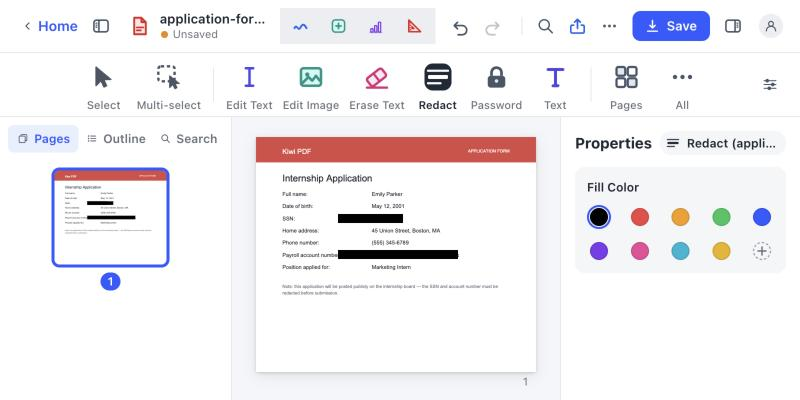
Step 4 — Save and permanently apply
Click Save. Kiwi PDF shows a clear warning: "Redacted pages will be flattened to images. The content underneath will be permanently removed and cannot be recovered." Click Save & Apply to confirm — or Discard Redactions if you want to keep editing first.
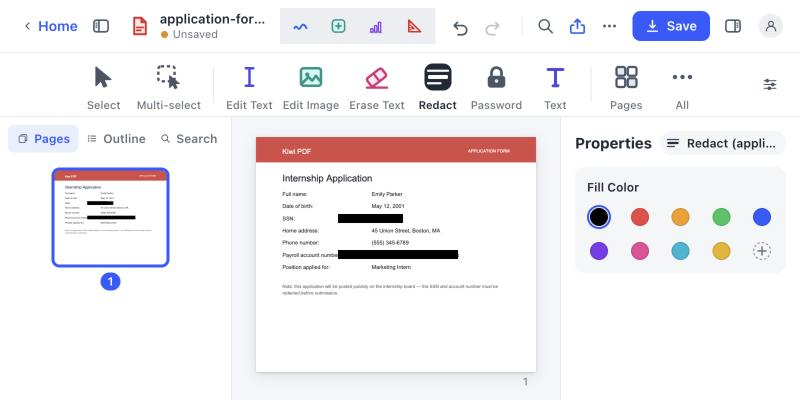
The file is now safe to print, photocopy or upload to a public portal — there's no text layer left to copy or extract under the black boxes.
Tips for redacting safely
- Double-check every box fully covers the sensitive text — a box that's slightly too small, like a cut-off digit, defeats the whole point.
- Redact on a copy of the file, not your only original — the action is permanent and the Confirm dialog says so for a reason.
- Don't confuse redaction with highlighting: a highlight or a drawn rectangle from the Markup tools sits on top of the text but doesn't delete it — only the dedicated Redact tool flattens the page to an image.
Open the editor and redact a PDF now →