Draw, ink and brush annotations
Freehand drawing with the Pen, Marker and Brush tools.
Kiwi PDF includes three freehand drawing tools — the Pen, the Marker and the Brush. Each produces a different line style.
Choose a drawing tool
- Choose the Annotate tool group (the button in the middle of the top bar), then tap Pen, Marker or Brush in the tool dock.
- Draw on the page with your finger or a stylus. Each stroke is added as soon as you lift.
- Pick a colour and use − / + to change the thickness in the Properties bar.
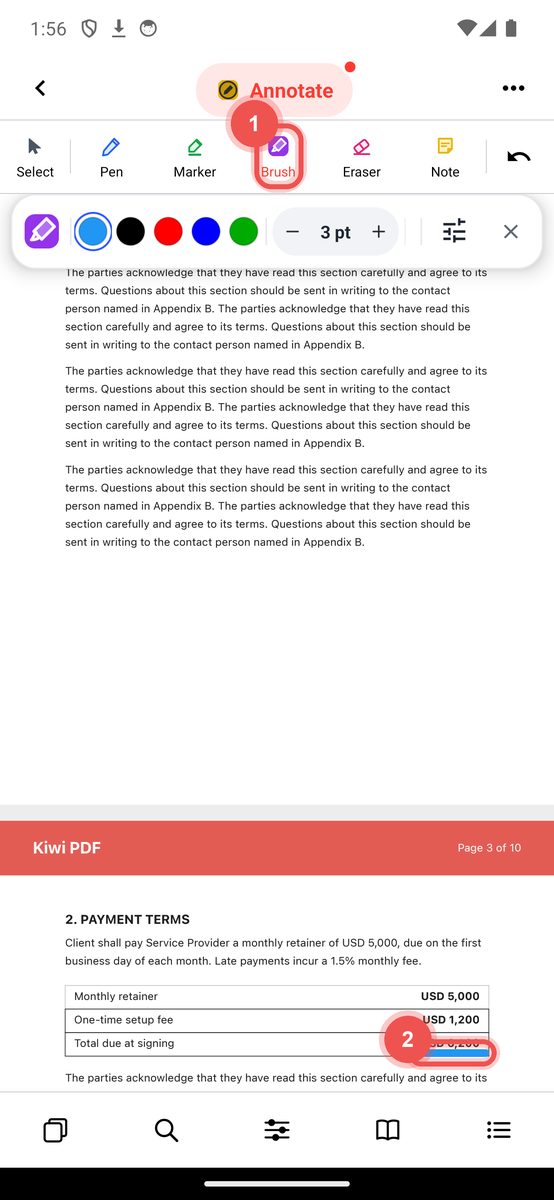
Annotate group with the Brush tool and a brush stroke
Pen
The Pen draws a smooth line of constant width. Use it for neat writing, arrows and precise marks.
- Adjust thickness and colour in the properties bar or panel.
- Adjust opacity to make strokes semi-transparent.
Marker
The Marker draws thick, semi-transparent strokes — ideal for marking passages of text on a scanned document where the Highlight markup tool cannot detect text.
- Default opacity is 50 % so you can read the text underneath.
- Increase thickness for wider coverage.
Brush
The Brush produces strokes that vary in width depending on drawing speed — thick when drawn slowly, thin when drawn quickly — simulating the feel of a real brush or fountain pen.
- The variation in width is stored with the annotation and is visible in other PDF apps.
Erase a stroke
Switch to the Eraser tool and tap or drag over any drawn annotation to delete it. The eraser removes whole annotation objects, not individual pixels.
Select and edit a drawn annotation
Switch to the Select tool and tap the stroke. Drag it to move it, drag a corner handle to resize, or drag the round button above the frame to rotate. See Select, move and resize annotations.