Help Center › Android › PDF tools
Compress a PDF
Reduce the file size of a PDF by downsampling embedded images. Text and vectors stay sharp.
Applies to Android 8.0 or later
The Compress tool reduces a PDF's file size by shrinking embedded images. Text, fonts and vector graphics are untouched — the output looks identical to the original at normal viewing sizes.
How to compress
- With the PDF open, tap ••• and choose Reduce File Size (number 3 in the picture). You can also start from the Tools tab › Compress PDF.
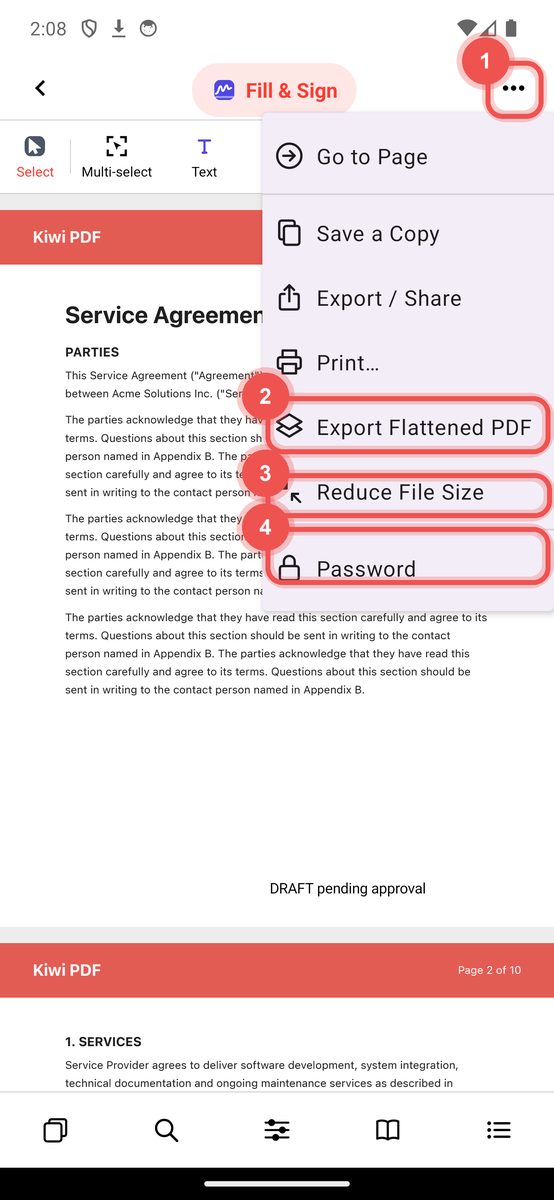
The ••• menu - Pick a compression level: - Smallest (72 dpi images) — smallest file, for on-screen viewing. - Balanced (110 dpi) — good for sharing and email. - Sharpest (150 dpi) — keeps images clearer, for printing.
- Tap Reduce File Size. Only images are recompressed — text, vector graphics, links and form fields stay intact.
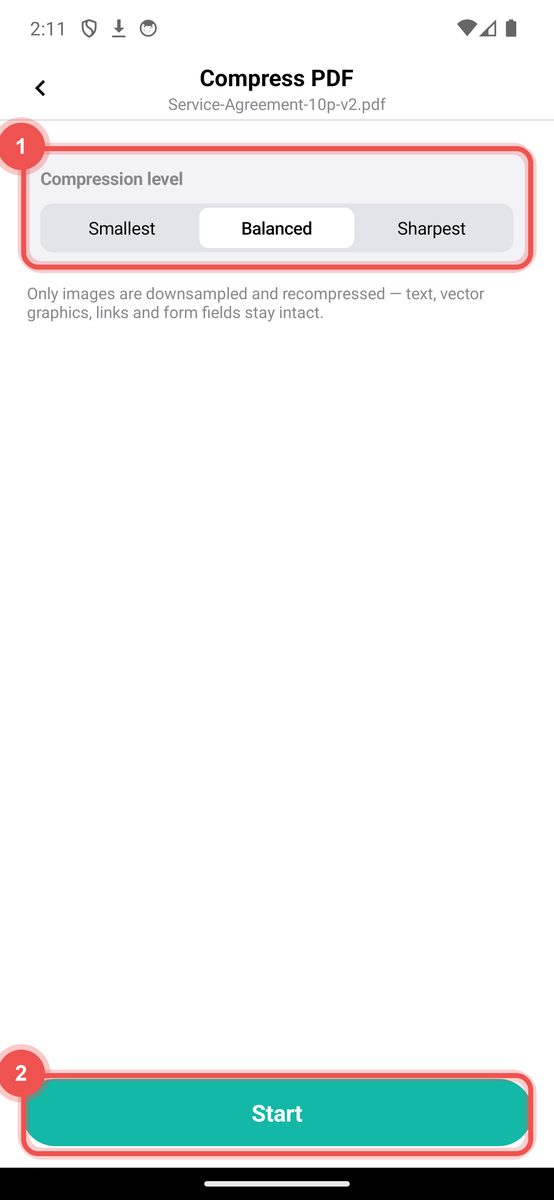
The Reduce File Size sheet
Tips
- Compression only helps if the PDF contains images (photos, scans). A PDF with only text and vector graphics will not shrink much.
- Use Smallest or Balanced for documents you will share by email or message.
- Use Sharpest for anything that may be printed.
- The original file is never modified — the compressed result is always a new file.