Edit images in a PDF
Replace, move, resize or delete images that are already embedded in a PDF.
The Edit Image tool works on images that are already part of the PDF's content — not on image annotations you have added. You can replace a photo, move it, resize it or remove it entirely.
Open the image editor
- Tap the tool group button in the middle of the top bar and choose Edit.
- Tap Edit Image (number 3 in the picture) in the tool dock.
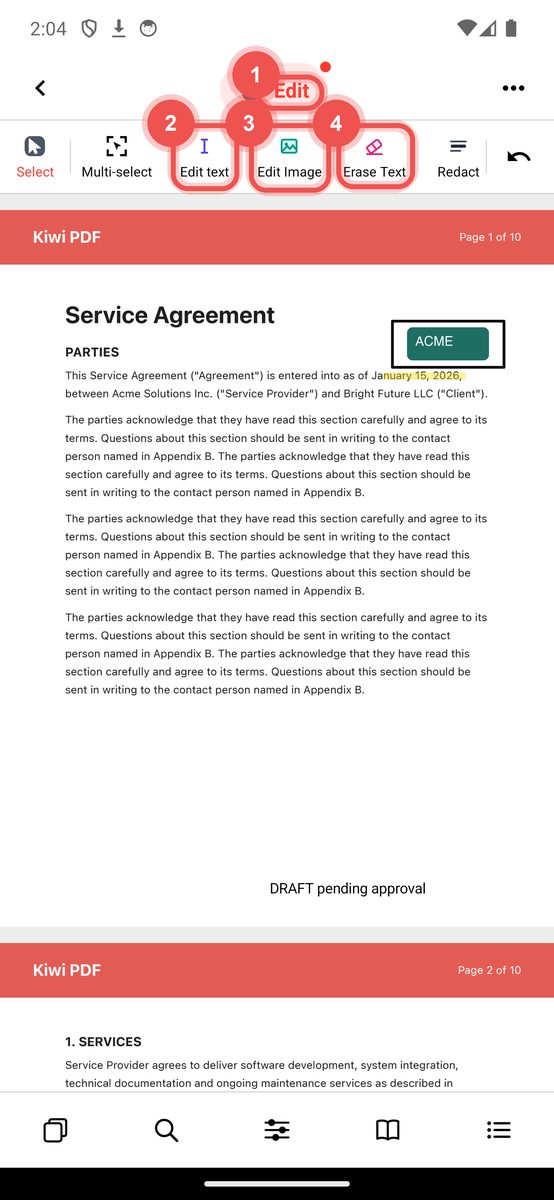
The Edit group: Edit Text, Edit Image and Erase Text - Tap any embedded image on the page. A selection frame with handles appears around it.
Move an image
Drag the selected image to a new position on the page. The image stays within the page boundaries.
Resize an image
Drag a corner handle to resize the image. Hold Shift (desktop) to maintain the aspect ratio.
Replace an image
Tap the selected image, then tap Replace in the action bar. Your device's photo picker or file browser opens. Select a new image — it will be placed at the same position and size as the original.
Delete an image
Tap the selected image, then tap Delete in the action bar.
Erase text (white out)
The Erase Text tool (in the same Edit group) places a white rectangle over any area to cover unwanted text or graphics. Unlike Redact, this is a visual cover-up, not a permanent deletion of content.
- Select Erase Text from the Edit tools.
- Drag to draw a white rectangle over the area you want to cover.
- Adjust its position and size with the selection handles.