Help Center › Android › Annotate
Sticky notes
Drop a sticky note anywhere on the page, choose from 16 note icons and write a comment.
Applies to Android 8.0 or later
Sticky notes let you leave a comment at any point on a page. They appear as a small icon; tap to read or edit the text.
Add a sticky note
- In the Annotate group, tap Note in the tool dock. If you can't see it, swipe the dock to the left.
- Tap the spot on the page where the note should go.
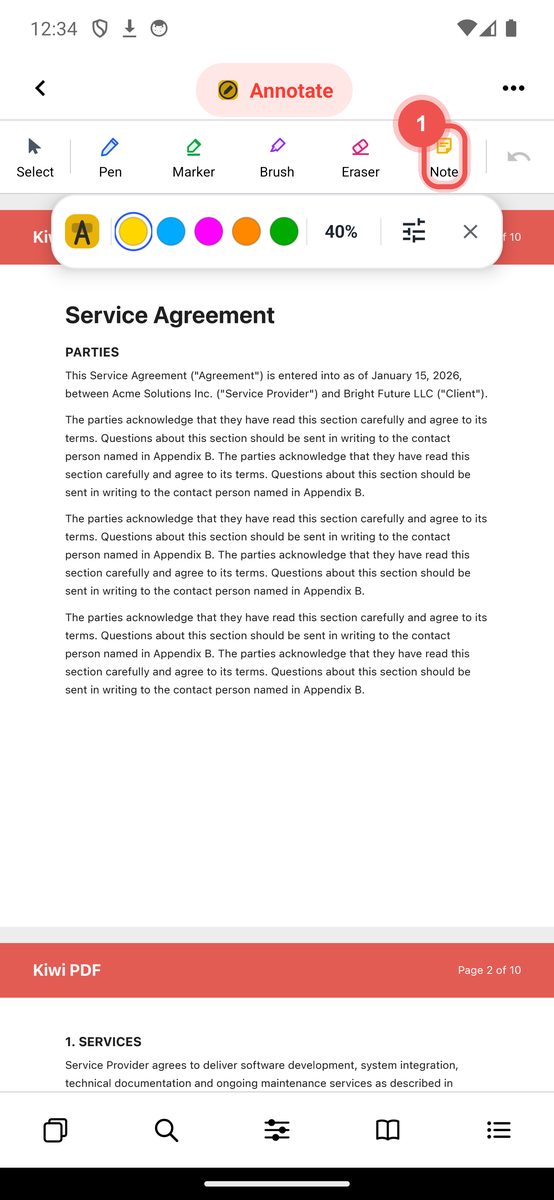
The Note tool in the Annotate group - The Comment sheet opens. Type your comment, then tap Done.
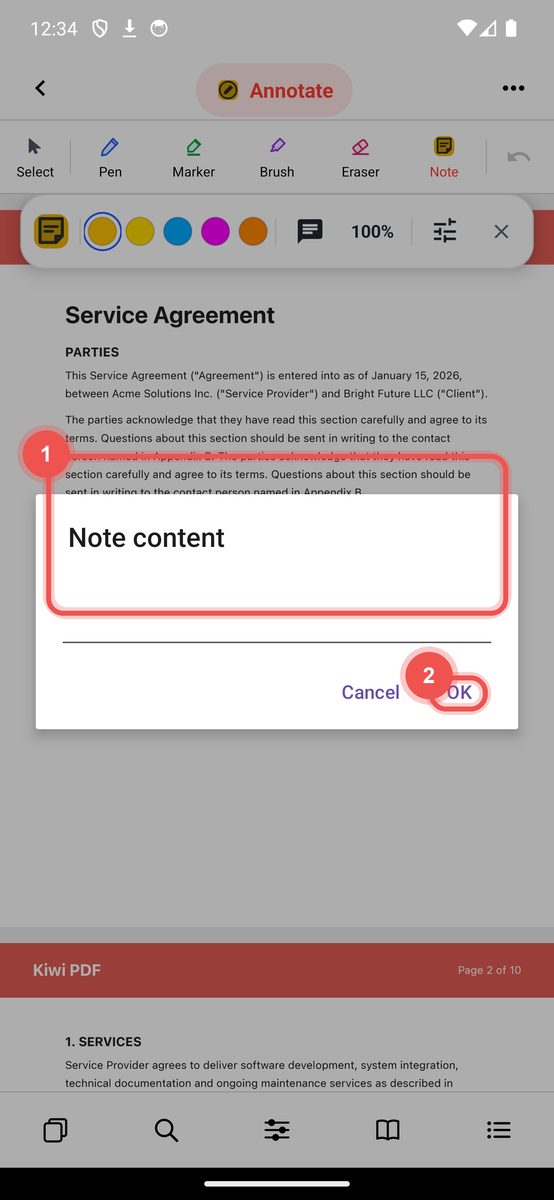
Writing the comment - The note icon stays on the page, selected. Pick a colour, or tap the icon well in the Properties bar to choose another note icon.
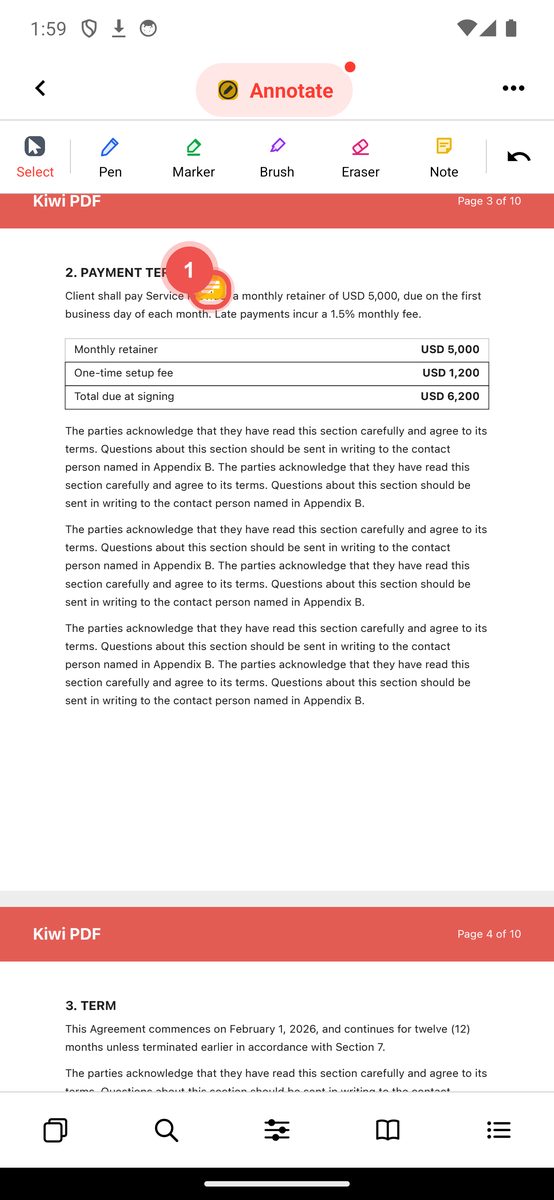
The placed note and its Properties bar
Choose a note icon
Kiwi PDF offers 16 note icon styles: Comment, Note, Help, Insert, Key, NewParagraph, Paragraph, Star, Check, Cross, Circle, Warning, Lamp, Sound, Document and Tag.
To change the icon, tap or click the note to select it, then tap (mobile) or open the properties panel (desktop) and pick a different icon.
Edit note text
With the Select tool active, tap the note icon. The Comment sheet opens again with the text ready to edit.
Move a note
Tap or click the note to select it, then drag it to a new position.
Notes are visible in Adobe Acrobat, Preview and other PDF apps. The icon type is preserved when sharing.