Help Center › iPhone & iPad › Annotate
Draw shapes
Add rectangles, circles, lines, arrows, clouds, callouts, polygons and polylines.
Applies to iOS / iPadOS 16 or later
Kiwi PDF's Shapes tools let you draw geometric annotations, from simple rectangles to multi-point polygons with fill patterns.
Available shapes
| Shape | Description |
|---|---|
| Rectangle | A four-sided box; can be filled solid or with a hatch pattern |
| Circle / Ellipse | An oval shape; can be filled |
| Line | A straight line between two points |
| Arrow | A line with an arrowhead at one or both ends |
| Cloud | A rectangle with a wavy "cloud" border |
| Callout | A speech-bubble shape with a pointer |
| Polygon | A closed shape with any number of vertices |
| Polyline | An open path with any number of vertices |
Draw a shape
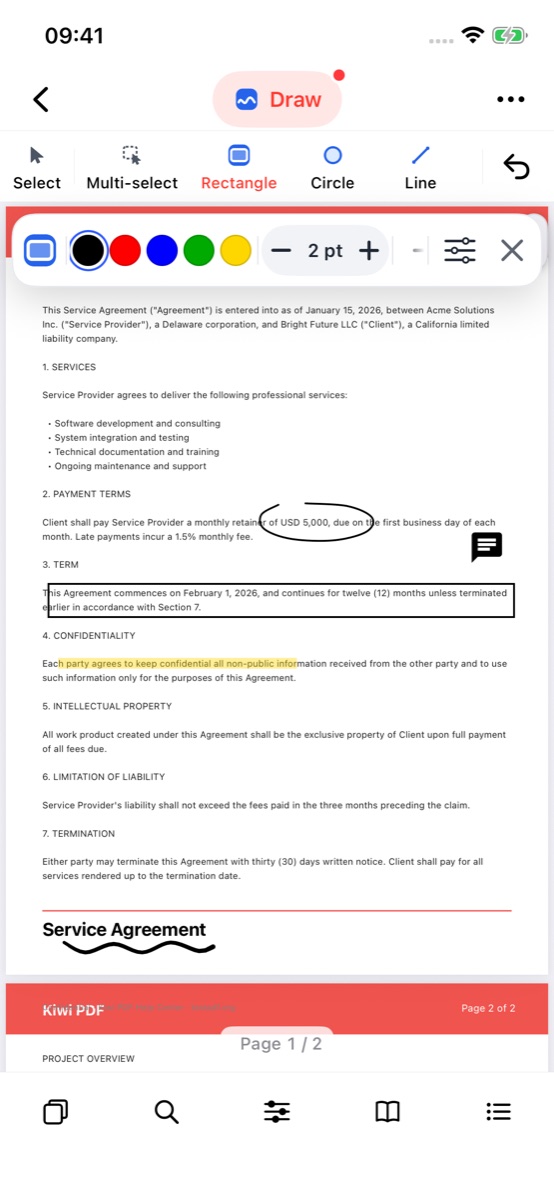
- Tap the tool group button in the middle of the top bar and choose Draw.
- Tap a shape in the tool dock — Rectangle, Circle, Line; swipe the dock left for Arrow, Cloud, Callout, Polygon and Polyline.
- Drag on the page from one corner to the opposite corner (for a line or arrow: from start to end). The shape is added when you lift your finger.
- Pick the stroke colour and use − / + for the thickness; tap for fill, hatch pattern, line style and arrow ends.
 1234
Draw group, the Rectangle tool and a drawn rectangle
For Polygon and Polyline, tap once for each corner, then tap the first point again (or double-tap) to finish.
Edit shape properties
Select a shape and use the properties bar (or properties panel) to change:
- Stroke colour and thickness
- Fill colour — a solid colour inside the shape
- Fill pattern — hatch (diagonal lines), cross-hatch, dots or no fill
- Border style — solid, dashed, or dotted
- Arrow ends — choose arrowhead style for Line/Arrow shapes
- Opacity — make the whole shape semi-transparent
Edit polygon vertices
Select a Polygon, Polyline, Line or Arrow with the Select tool. A handle appears on every corner and end point — drag one to reshape the path.
Move and resize a shape
Tap or click the shape to select it. Drag to move it. Use the corner and edge handles to resize it. Drag the round button above the frame to rotate.