Help Center › iPhone & iPad › PDF tools
PDF tools overview
The Tools Hub gives you 43 one-tap PDF operations — merge, split, compress, convert and more.
Applies to iOS / iPadOS 16 or later
The Tools tab (or section) is a collection of one-tap PDF operations. Each tool follows the same four-step flow: pick files, set options, run, save.
How to use a tool
- Tap the Tools tab at the bottom of the screen.
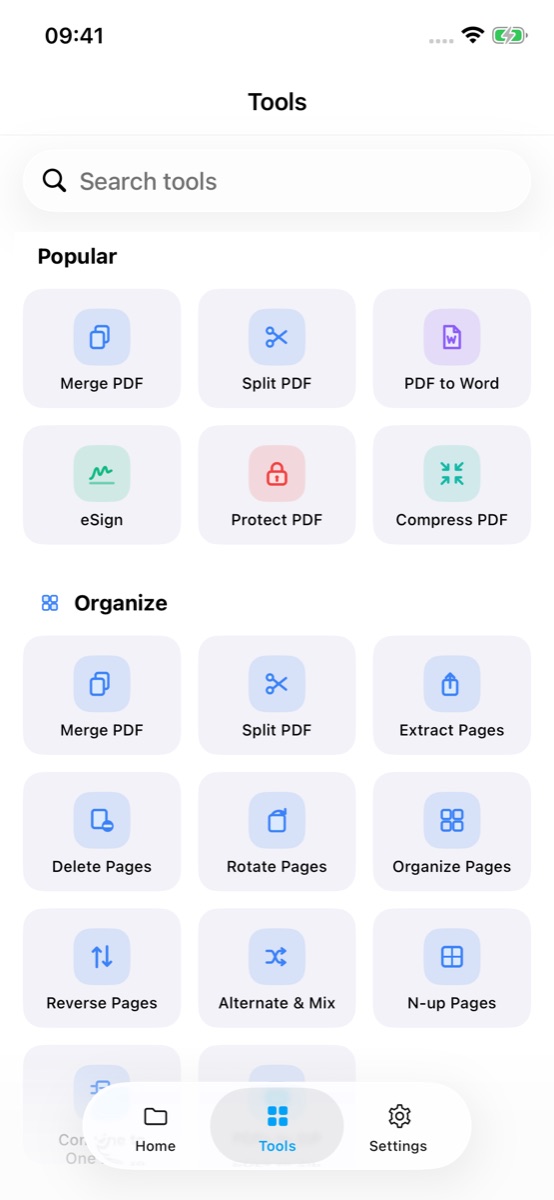
- Use the search bar (1) or pick a tool from Popular (2) or the groups below.
 12
The Tools hub - Tap the tool.
- Select the PDF (or PDFs) to process.
- Adjust any options (page range, quality, output format…).
- Tap Run or Start.
- When complete, choose Save, Share or Open for the result.
Available tool groups
Organise (11 tools)
- Merge PDFs, Split PDF, Extract pages, Delete pages, Rotate pages, Organise pages, Reverse pages, Alternate mix, N-up layout, Combine to one page, PDFs to ZIP
Convert (8 tools)
- PDF to Word, PDF to Image, Image to PDF, Scan to PDF, Text to PDF, PDF to Text, PDF to Grayscale
Edit (11 tools)
- Edit Text, Annotate, Add Image, Watermark, Page Numbers, Crop, Header & Footer, Background Colour, Invert Colours, Remove Annotations, Edit Metadata
Fill & Sign (2 tools)
- eSign, Fill Form
Security (5 tools)
- Protect, Unlock, Redact, Flatten, Remove Metadata
Optimise (6 tools)
- Compress, OCR, Repair PDF, Remove Blank Pages, Fix Page Size, Rasterize
The eSign shortcut is the fastest way to sign a PDF — it opens the editor with the signature pad ready, skipping the tool group selection step.
Word to PDF
Word to PDF is listed as *coming soon*. Kiwi PDF plans to add this tool in a future update using a cloud conversion service.