Help Center › Web › Security
Protect a PDF with a password
Add, change or remove a password on a PDF. Open password-protected files.
Applies to A recent Chrome, Edge, Safari or Firefox
Kiwi PDF can add a 256-bit AES password to any PDF, change an existing password, or remove it entirely.
Add a password
- Open the PDF in the editor, then choose Password in the Edit tool row — or Protect in the ••• menu.
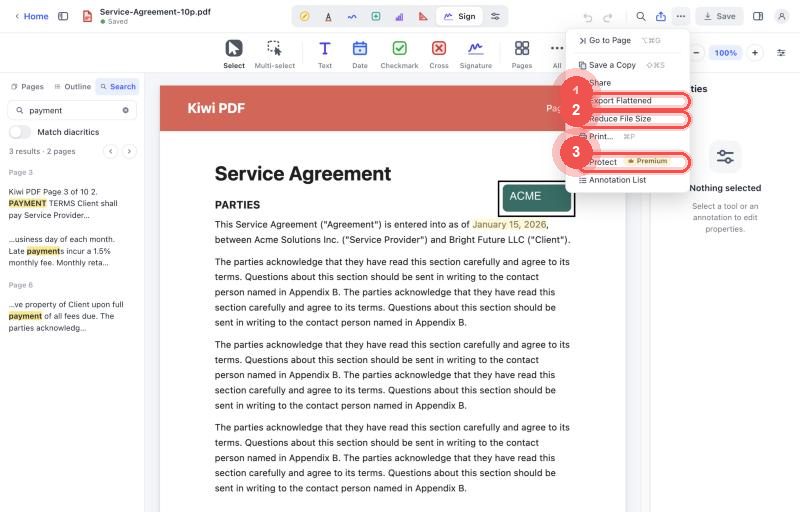
The ••• menu with Protect - Type the password, confirm it and click Set Password. The file is encrypted the next time you save.
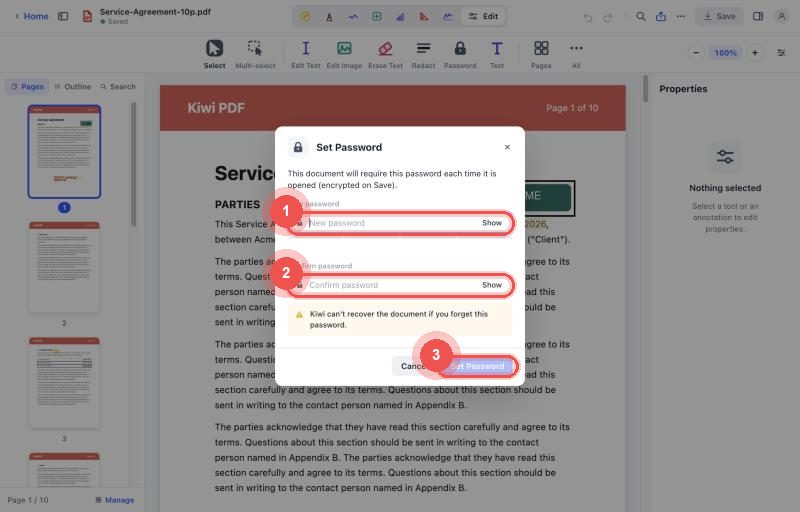
The Set Password dialog
The password uses AES-256 encryption. There is no way to recover a forgotten password — keep it somewhere safe.
Open a password-protected PDF
When you open a protected PDF, Kiwi PDF asks for the password before showing the content. Type the password and tap/click Open. The document is decrypted locally — the password is never sent to a server.
Change or remove a password
Open the protected PDF, then choose File › Password… again (Web: Protect). Leave the field blank to remove the password.
What the password protects
The password encrypts the entire PDF file. Anyone who tries to open the file in any PDF app will need the password. It does not protect the file from being shared or forwarded — it only protects its contents from being read without the password.