Help Center › Android › Edit text & images
Edit text in a PDF
Tap any existing text in a PDF to edit it in place — change words, delete characters or add new text.
Applies to Android 8.0 or later
Kiwi PDF lets you edit the original text content of a PDF — not just add an overlay. You can correct a typo, update a number or delete a sentence directly in the document.
Edit existing text
- Tap the tool group button in the middle of the top bar and choose Edit.
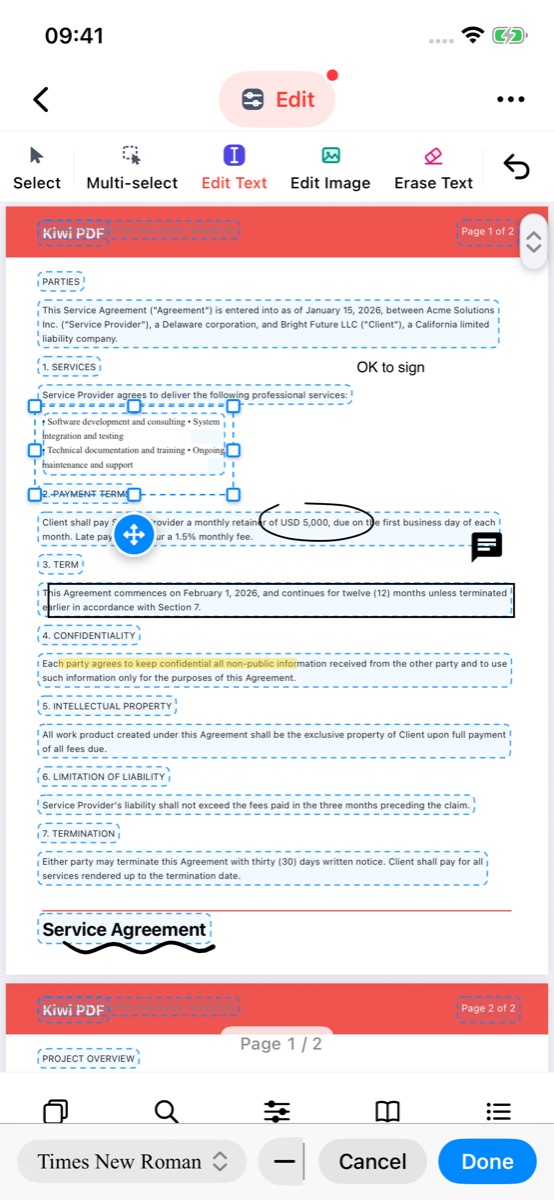
- Tap Edit Text in the tool dock. Every text block on the page gets a dashed outline.
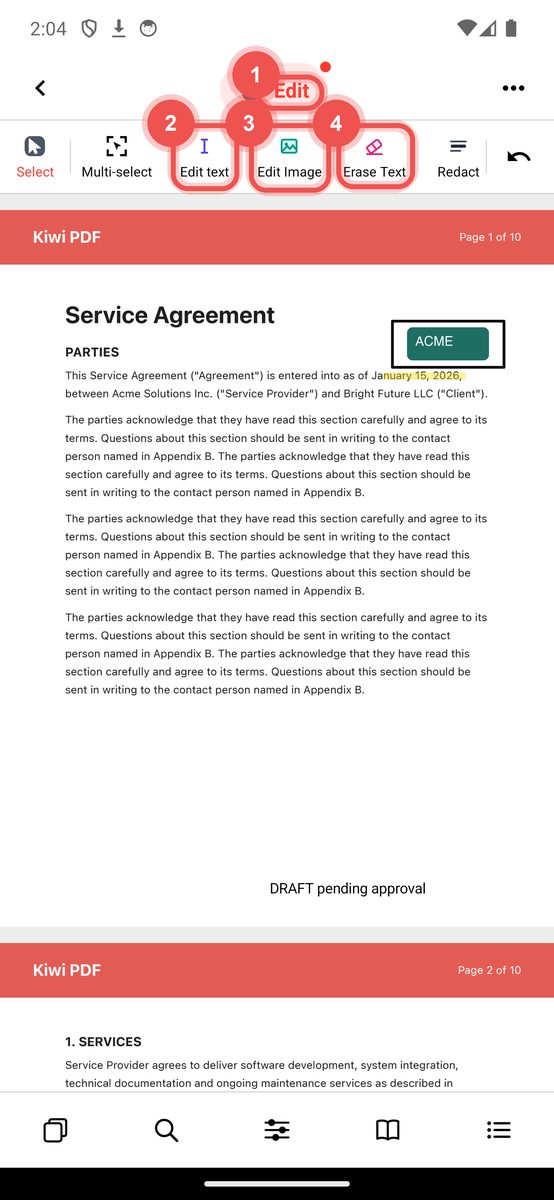
The Edit group: Edit Text, Edit Image and Erase Text - Tap a text block. It opens for editing with the cursor where you tapped; type or delete characters.
- Drag the round move button to move the block, or drag a handle on the frame to resize it.
- The bar at the bottom changes the font and size.
- Tap Done to apply, or Cancel to discard.
 2345
Editing a text block in place
Each change you make is a single undo step — tap Undo to reverse the last edit.
Add new text (press and hold)
To insert new text where there is nothing yet, press and hold on an empty area of the page for about one second. A new text insertion point appears, ready for typing.
A simple tap in an empty area does nothing. You must press and hold to start a new text entry.
What you can and cannot edit
Supported edits:
- Delete or replace individual characters and words.
- Insert new characters within an existing text block.
- Add completely new lines of text (press and hold on mobile; click on desktop).
Limitations:
- Text reflow is not supported — the text block does not expand to fit longer text. If you add many characters, the block may overflow.
- The font, size and colour of edited text match the font already in the PDF. If the font is not installed on your device, the replacement may look slightly different.
- Text in images (raster scans) cannot be edited with this tool — use OCR first to convert it to real text.
For a completely new text annotation that can be freely positioned and styled, use Text box instead.