Help Center › Web › Edit text & images
Edit text in a PDF
Tap any existing text in a PDF to edit it in place — change words, delete characters or add new text.
Applies to A recent Chrome, Edge, Safari or Firefox
Kiwi PDF lets you edit the original text content of a PDF — not just add an overlay. You can correct a typo, update a number or delete a sentence directly in the document.
Edit existing text
- Select the Edit Text tool. Every editable text block on the page gets a dashed outline.
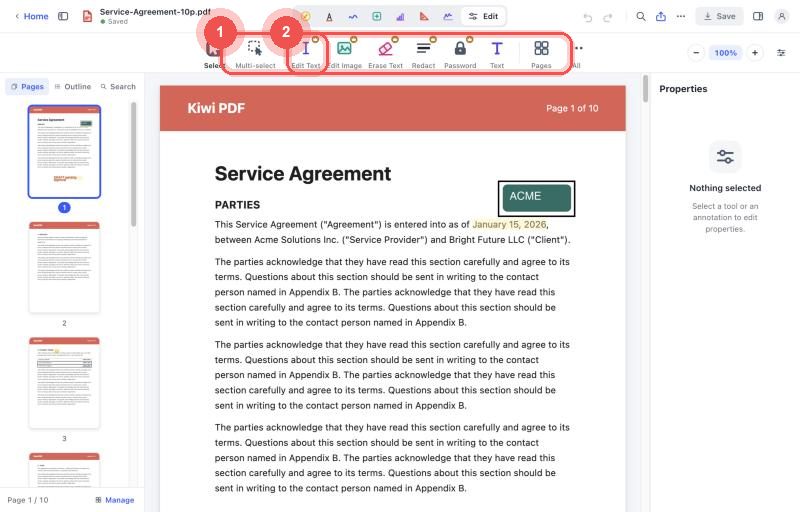
The Edit tool row: Edit Text, Edit Image, Erase Text - Click a text block. An editing box opens with a formatting bar above it (font, size, bold, italic, colour) and 8 handles around the frame.
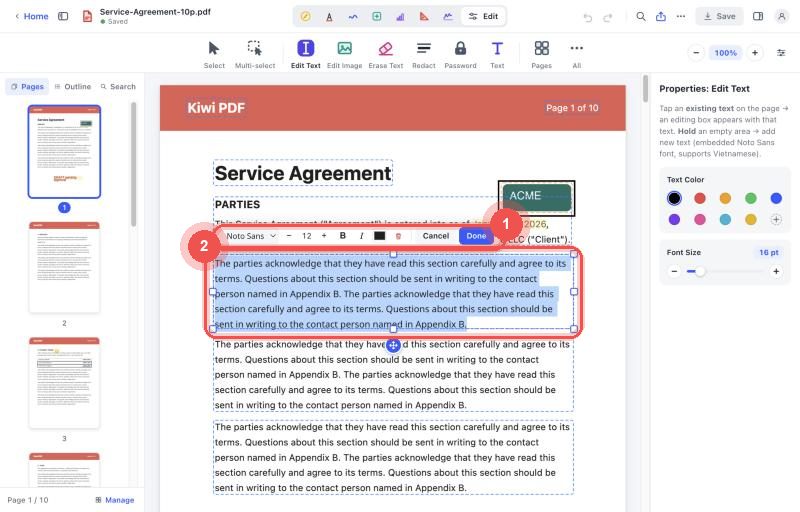
Editing a text block in place: the formatting bar and the editing frame - Edit the text, then click Done to apply or Cancel to discard.
Press Ctrl Z to undo edits.
Add new text (press and hold)
Click on an empty area of the page and start typing. A new text object is created at that point.
What you can and cannot edit
Supported edits:
- Delete or replace individual characters and words.
- Insert new characters within an existing text block.
- Add completely new lines of text (press and hold on mobile; click on desktop).
Limitations:
- Text reflow is not supported — the text block does not expand to fit longer text. If you add many characters, the block may overflow.
- The font, size and colour of edited text match the font already in the PDF. If the font is not installed on your device, the replacement may look slightly different.
- Text in images (raster scans) cannot be edited with this tool — use OCR first to convert it to real text.
For a completely new text annotation that can be freely positioned and styled, use Text box instead.