Help Center › Android › Fill & Sign
Fill in a form
Fill PDF form fields, add dates, check marks and text anywhere on a form.
Applies to Android 8.0 or later
Kiwi PDF can fill both interactive PDF forms (with built-in form fields) and flat forms (scanned or printed forms with no fields).
Fill an interactive form
If the PDF contains form fields, they are highlighted when you open the document in the editor.
- Tap a text field and type your answer. The keyboard appears automatically.
- Tap a checkbox or radio button to check or uncheck it.
- Tap a date field and use the date picker to set the date.
- Tap the Next field arrow (bottom of keyboard) to jump to the next field.
Fill a flat (non-interactive) form
For forms that have no interactive fields, use the Fill & Sign tools:
- Tap the tool group button in the middle of the top bar and choose Fill & Sign.
- Pick a tool in the dock (swipe it for more), then tap the page:
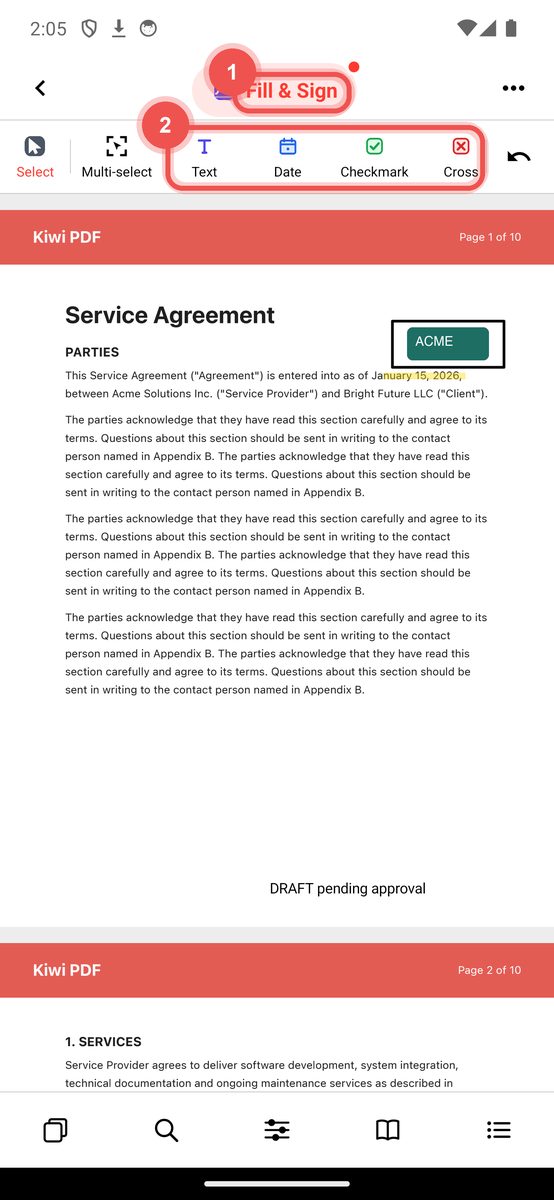
The Fill & Sign group - Use Text to type in blank areas.
- Use Date to place a formatted date.
- Use Check mark () or Cross () to mark boxes.
- Use Signature to add your signature (see Sign a PDF).
Place a date
- Select the Date tool from Fill & Sign.
- Tap or click where you want the date.
- Choose the format from the picker and confirm. The formatted date is placed as a text annotation.
Place a check mark or cross
- Select Check mark or Cross from Fill & Sign.
- Tap or click the checkbox area. The symbol is placed at that point.
- Drag to reposition; use the size handles to scale it.
After filling a form, use Flatten (Tools › Flatten) to permanently embed the fill content in the PDF so it cannot be accidentally moved.