Help Center › Android › Read PDFs
Manage pages
Rotate, delete, reorder, crop and extract pages from any PDF.
Applies to Android 8.0 or later
The page manager lets you reorganise, rotate and delete pages without opening the full editor.
Open the page manager
- Open the PDF and tap the Pages button (two stacked pages) at the left of the bottom bar.
- Manage Pages shows every page as a thumbnail. Annotated lists only the pages that have annotations.
Select pages and act on them
- Tap the round check box at the top-left of a thumbnail to select that page, or tap the select-all button next to Done to select every page. Tapping the page itself opens it in the editor.
- Selected pages get a blue frame and a tick.
- Use the bar at the bottom: Add pages, Rotate, Duplicate, Share the selected pages as a new PDF, or Delete them.
- Press and hold a thumbnail, then drag it to a new position to reorder pages.
- Tap Done to apply the changes, or to discard them.
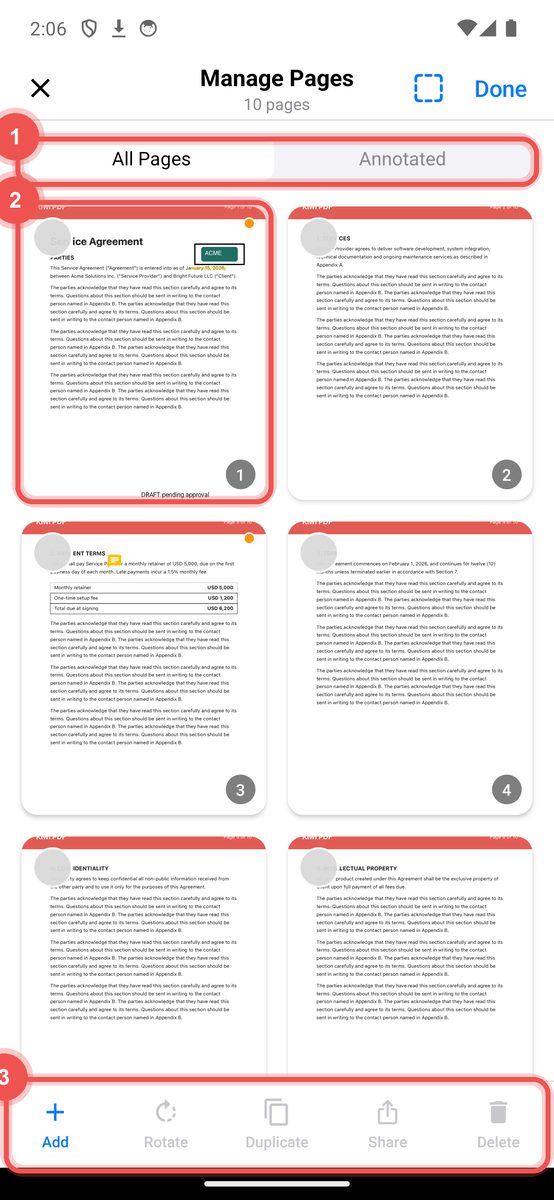
Manage Pages with pages selected and the action bar
On iPhone, iPad and Android nothing changes until you tap Done. Tap to leave without changing the file.