Help Center › Mac › Read PDFs
Manage pages
Rotate, delete, reorder, crop and extract pages from any PDF.
Applies to macOS 14 Sonoma or later
The page manager lets you reorganise, rotate and delete pages without opening the full editor.
Open the page manager
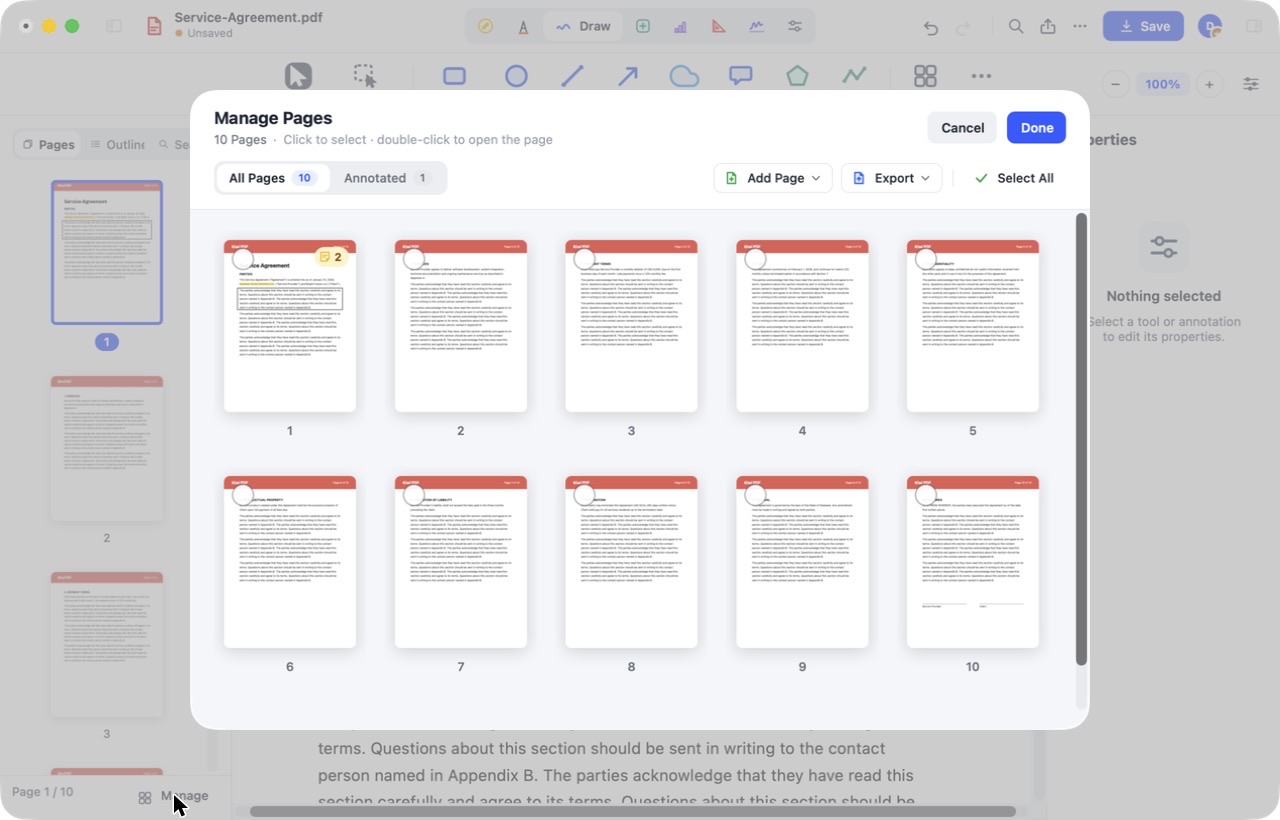
Click Manage at the bottom of the page sidebar.
- Switch between All Pages and Annotated.
- Click a page to select it, double-click to open it; drag to reorder.
- Add Page, Export and Select All are at the top right.
- Click Done to apply, or Cancel to discard.
 1234
The Manage Pages window
Select pages and act on them
Click a thumbnail to select it. Hold ⌘ (Mac) or Ctrl (Windows/Web) and click to add more pages; hold Shift to select a range. Then rotate, delete, extract or drag to reorder.
On iPhone, iPad and Android nothing changes until you tap Done. Tap to leave without changing the file.