Help Center › iPhone & iPad › Security
Flatten a PDF
Embed all annotations into the page so they cannot be moved, edited or removed.
Applies to iOS / iPadOS 16 or later
Flattening merges all your annotations (highlights, text boxes, signatures, shapes, etc.) into the page image permanently. After flattening, the annotations cannot be moved, edited or deleted by anyone.
Flatten from the file manager
- In the file manager, long-press (or swipe left on) the PDF.
- Tap Quick export › Flattened PDF.
- A new flattened copy is created — the original file is unchanged.
Flatten from the editor
- With the PDF open, tap ••• and choose Export Flattened (number 2 in the picture).
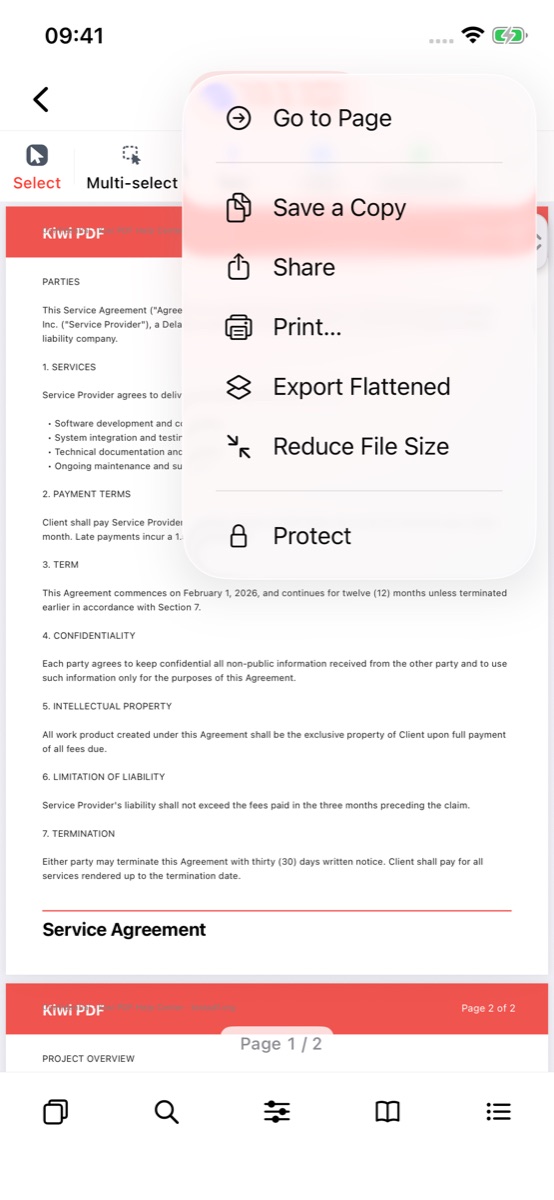 1234
The ••• menu
Alternatively, open the Tools tab (or Tools menu on Mac/desktop), find Flatten in the Security group and run it.
The flattened PDF is saved as a copy or exported for sharing.
When to flatten
Flatten a PDF before sharing it when you want to:
- Lock in a signature — no one can move or delete the signature.
- Share a marked-up document where the annotations are final.
- Ensure compatibility — some older apps or printers display annotations inconsistently; flattening guarantees they appear exactly as you see them.
Kiwi PDF always flattens to a copy. Your original, editable PDF is kept as-is so you can always go back and change annotations if needed.