Help Center › iPhone & iPad › Annotate
Select, move and resize annotations
Tap to select any annotation, then move, resize, rotate, copy or delete it.
Applies to iOS / iPadOS 16 or later
The Select tool lets you pick up any annotation you have added — a drawing, shape, text box, signature, image — and change it in place.
Select an annotation
- Tap Select at the start of the tool dock.
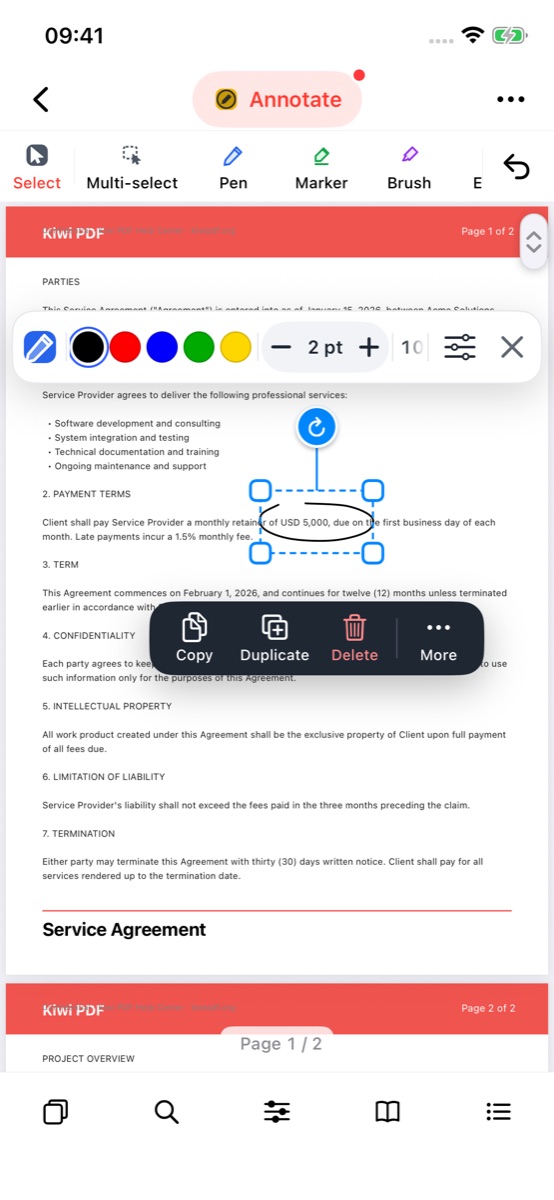
- Tap the annotation on the page. A blue dashed frame with a handle at each corner appears around it.
- A floating action bar appears next to it with Copy, Duplicate, Delete and More. The Properties bar for its colour and size floats on the other side.
 123
Select tool, the selected annotation and its action bar
Move, resize and rotate
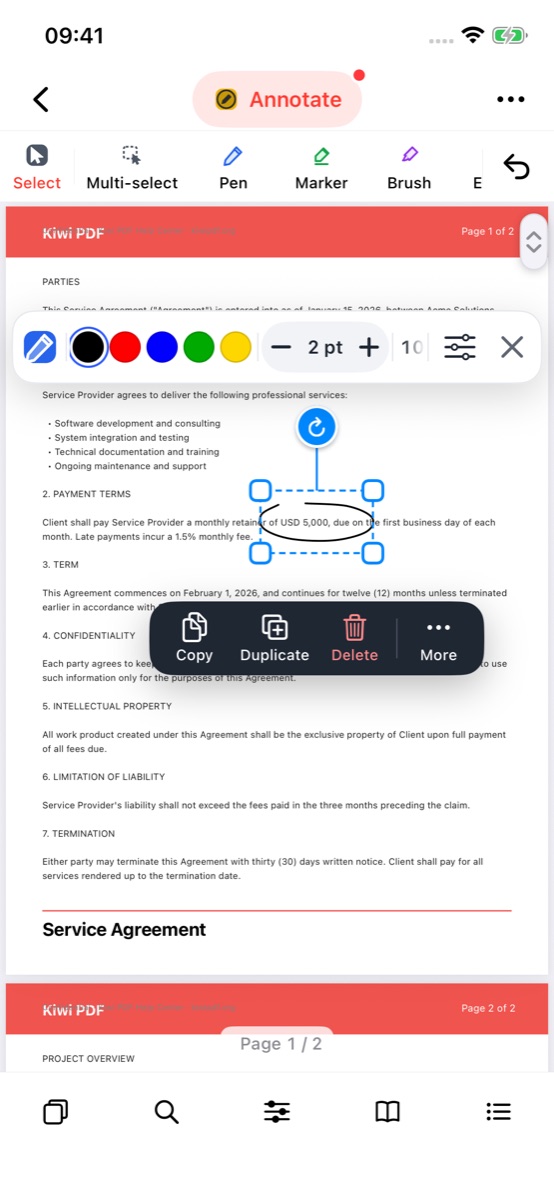
- Move — drag inside the frame to a new position.
- Resize — drag one of the corner handles. Long, thin items also get handles in the middle of each side.
- Rotate — drag the round blue button above the frame. The angle snaps every 15°.
 123
Drag inside the frame, a corner handle or the rotate button
For an exact position, size or angle, open the full properties panel ( in the Properties bar) and type the values in the Layout card.
Copy, lock, layer order and delete
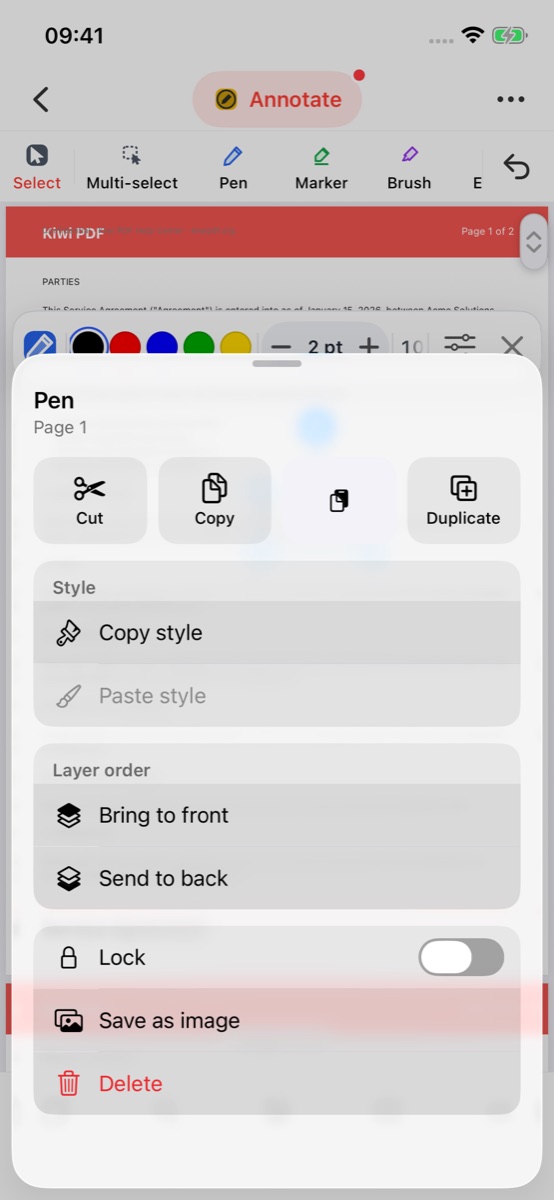
- Select the annotation and tap More in the action bar.
- Use the top row to Cut, Copy, Paste or Duplicate it.
- Bring to front or Send to back changes which annotation is drawn on top when they overlap.
- Turn on Lock so it can't be moved or edited by accident, or tap Delete to remove it.
 234
The More menu with cut, copy, layer order, lock and delete
Select several annotations
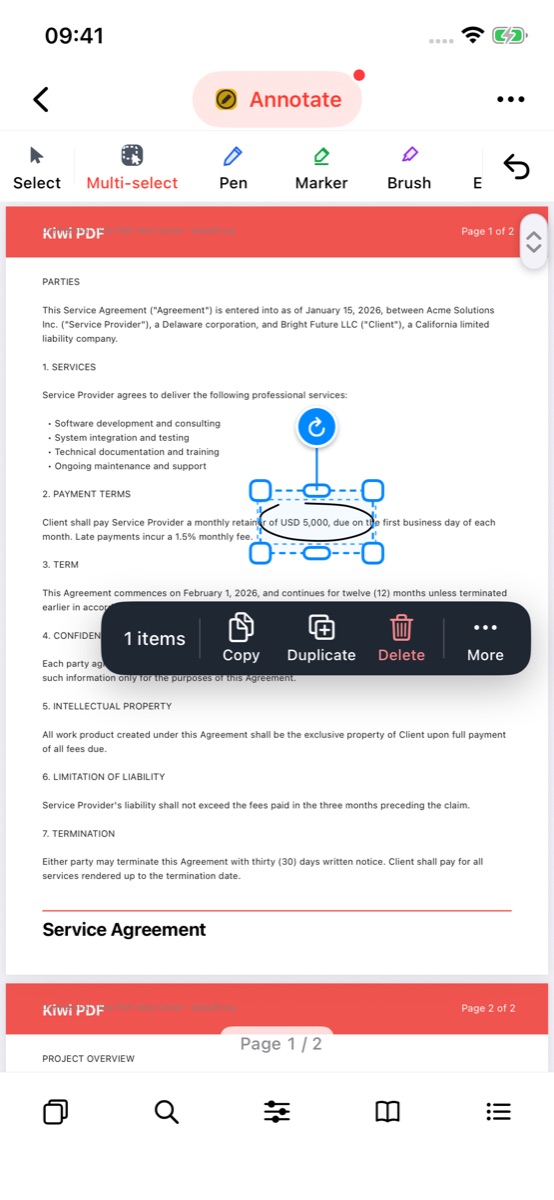
- Tap Multi-select in the tool dock.
- Drag a rectangle over the annotations you want. Everything the rectangle touches is selected as one group, which you can move, align or delete together.
 12
Multi-select tool and a group selection
Undo (↶) reverses each move, resize, rotation or deletion one step at a time.