Help Center › Mac › Annotate
Select, move and resize annotations
Tap to select any annotation, then move, resize, rotate, copy or delete it.
Applies to macOS 14 Sonoma or later
The Select tool lets you pick up any annotation you have added — a drawing, shape, text box, signature, image — and change it in place.
Select an annotation
- Click the Select tool.
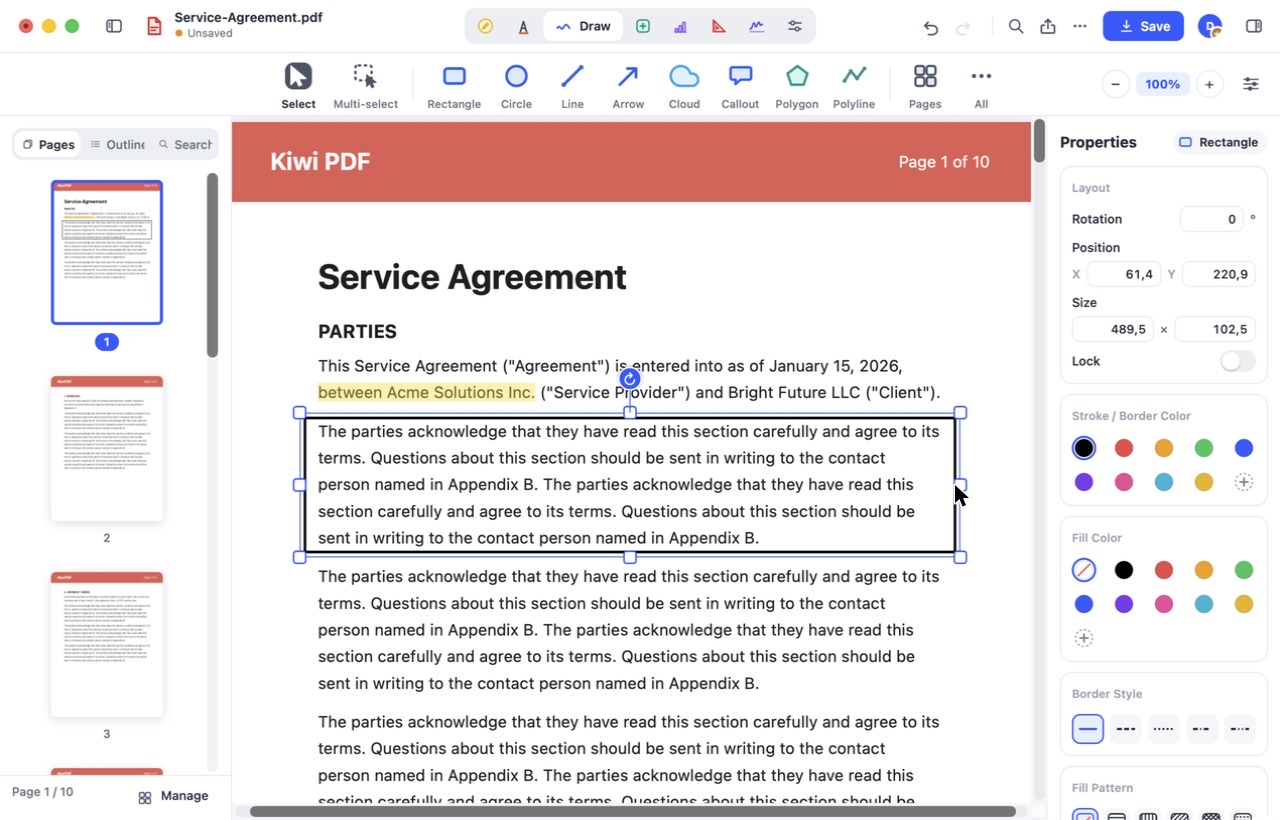
- Click an annotation. A frame with handles appears around it — drag it to move, drag a handle to resize.
- Drag the round button above the frame to rotate.
- The Layout card in the Properties panel sets exact rotation, position and size.
 1234
A selected rectangle and its Layout card
Right-click the annotation for Copy, Duplicate, Lock, Layer order and Delete.
Move, resize and rotate
Drag the annotation to move it, drag a handle to resize it and drag the round handle above the frame to rotate it. Hold Shift while resizing to keep the proportions.
For an exact position, size or angle, open the full properties panel ( in the Properties bar) and type the values in the Layout card.
Copy, lock, layer order and delete
Select the annotation and use the right-click menu or the keyboard: ⌘ C / Ctrl C copy, ⌘ V / Ctrl V paste, ⌘ D / Ctrl D duplicate, ⌘ L / Ctrl L lock, Delete remove.
Select several annotations
Choose Multi-select (or hold Shift and click) and drag a rectangle over the annotations. Move, align or delete them as a group.
Undo (↶) reverses each move, resize, rotation or deletion one step at a time.