Help Center › Web › Annotate
Highlight, underline and strikethrough text
Mark up existing text in a PDF with highlights, underlines, strikethroughs and squiggly lines.
Applies to A recent Chrome, Edge, Safari or Firefox
Markup tools let you annotate text that is already in the PDF — select a word, sentence or paragraph and apply a highlight or underline in one tap.
Apply a highlight
- Choose Highlight from the tool row.
- Click and drag across the text.
- Select the annotation to change its colour in the properties panel.
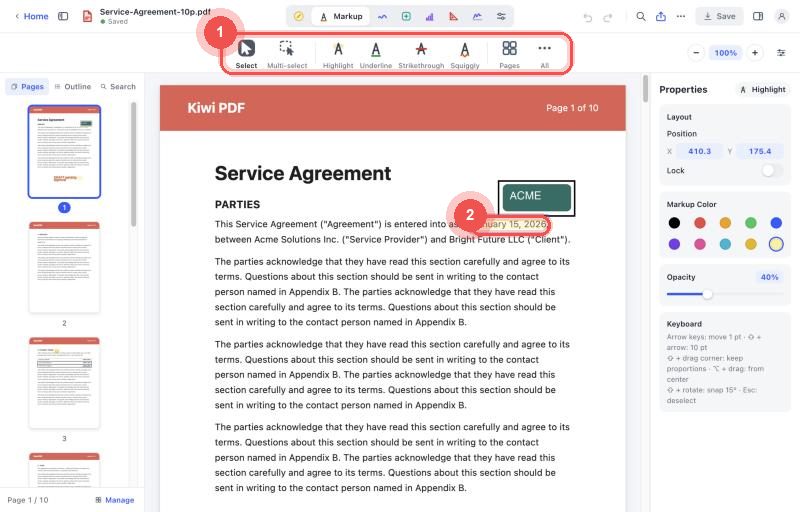
The Markup tool row and the highlighted effective date
Other markup tools
All markup tools work the same way — select the tool, drag across text:
| Tool | What it does |
|---|---|
| Highlight | Fills behind the text with a semi-transparent colour |
| Underline | Draws a solid line below the text |
| Strikethrough | Draws a line through the middle of the text |
| Squiggly | Draws a wavy underline (often used for spelling corrections) |
Change colour and opacity
Click the annotation to select it, then use the properties panel to change colour and opacity.
Delete a markup
Select it, then tap Delete in the action bar (mobile) or press the Delete key (desktop).
Markup annotations are saved as standard PDF highlight/underline annotations and will be visible in Adobe Acrobat, Preview and other PDF apps.