Help Center › Web › Read PDFs
Search text in a PDF
Find words and phrases in any PDF, with accent-insensitive search support.
Applies to A recent Chrome, Edge, Safari or Firefox
Use the search feature to find any word or phrase in a PDF document, even in scanned files processed with OCR.
Open search
Click the search icon in the toolbar, or press Ctrl F.
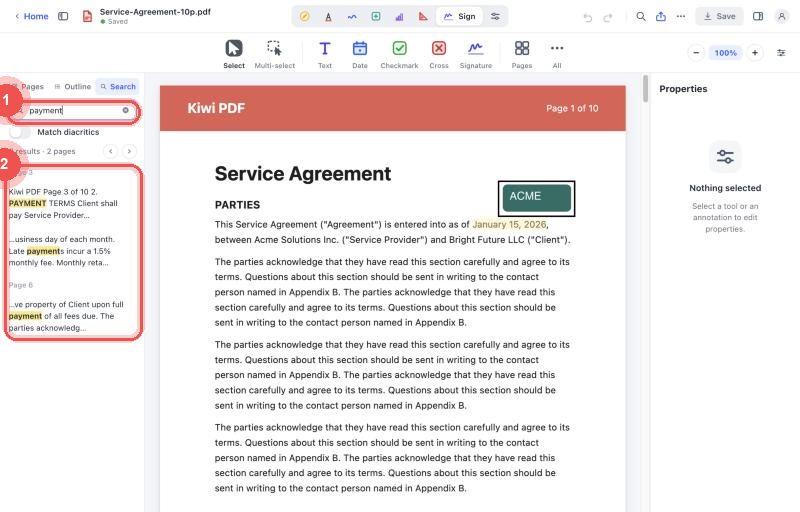
Search for a word
- Type the word or phrase in the search field.
- Results are highlighted on the page. The matching text is shown in a list below the field.
- Tap or click a result to jump to that page and centre the view on the match.
- Use the ▲ and ▼ arrows (or press Return / Enter) to step through results one by one.
Accent-insensitive search
Kiwi PDF can find text regardless of accents and diacritics. For example, searching for resume also finds résumé.
To control this, use the Match diacritics switch. When it is off (default), accents are ignored. Turn it on to require an exact accent match.
Tips
- Search is case-insensitive by default — "PDF" and "pdf" return the same results.
- If the PDF was created from scanned pages, search works only after OCR has been applied (see OCR a scanned PDF).
- Very large PDFs may take a moment to index on first search.