Help Center › Web › Fill & Sign
Sign a PDF
Draw your handwritten signature, place it on any page and reuse it later.
Applies to A recent Chrome, Edge, Safari or Firefox
Add your handwritten signature to a contract, form or any other PDF. Your signature is saved on the device so you can reuse it next time.
Open the signature pad
- Open the PDF in the web editor. In the tool group bar at the top, click Fill & Sign.
- Click Signature in the tool row below the top bar.
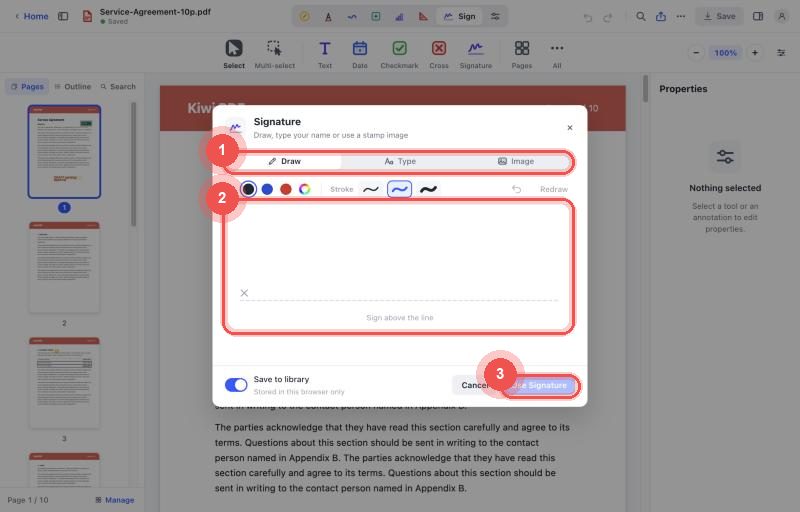
The signature dialog with the Draw, Type and Image tabs
Draw and place your signature
- In Draw your signature, sign above the line with your mouse, trackpad or a stylus. You can change the Ink colour and the Stroke weight.
- Not happy with it? Click Clear and sign again. Leave Save to signature library on to reuse it later, then click Use Signature.
- The signature is placed in the middle of the page you are viewing. Drag it onto the signature line; drag a corner to resize it or the round button to rotate it.
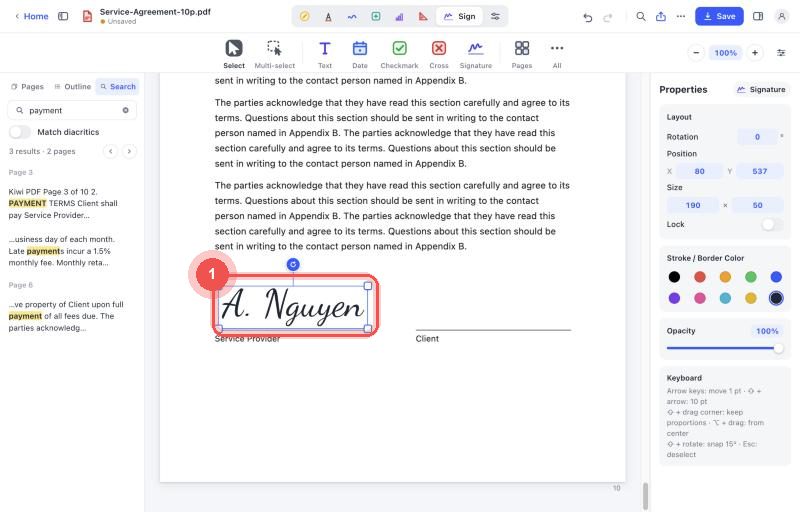
A signature placed on the Service Provider line
Reuse a saved signature
- Signatures you save appear under Saved signatures in the signature window. They are stored in this browser only.
- Click a saved signature to place it again without redrawing.
- To remove one, click the small × on its thumbnail.
A Kiwi PDF signature is a handwritten image signature. It is not a certificate-based digital signature.