Help Center › Windows › Fill & Sign
Sign a PDF
Draw your handwritten signature, place it on any page and reuse it later.
Applies to Windows 10 or later
Add your handwritten signature to a contract, form or any other PDF. Your signature is saved on the device so you can reuse it next time.
Open the signature pad
- Click the Fill & Sign group in the tool group bar, then select Signature.
Draw and place your signature
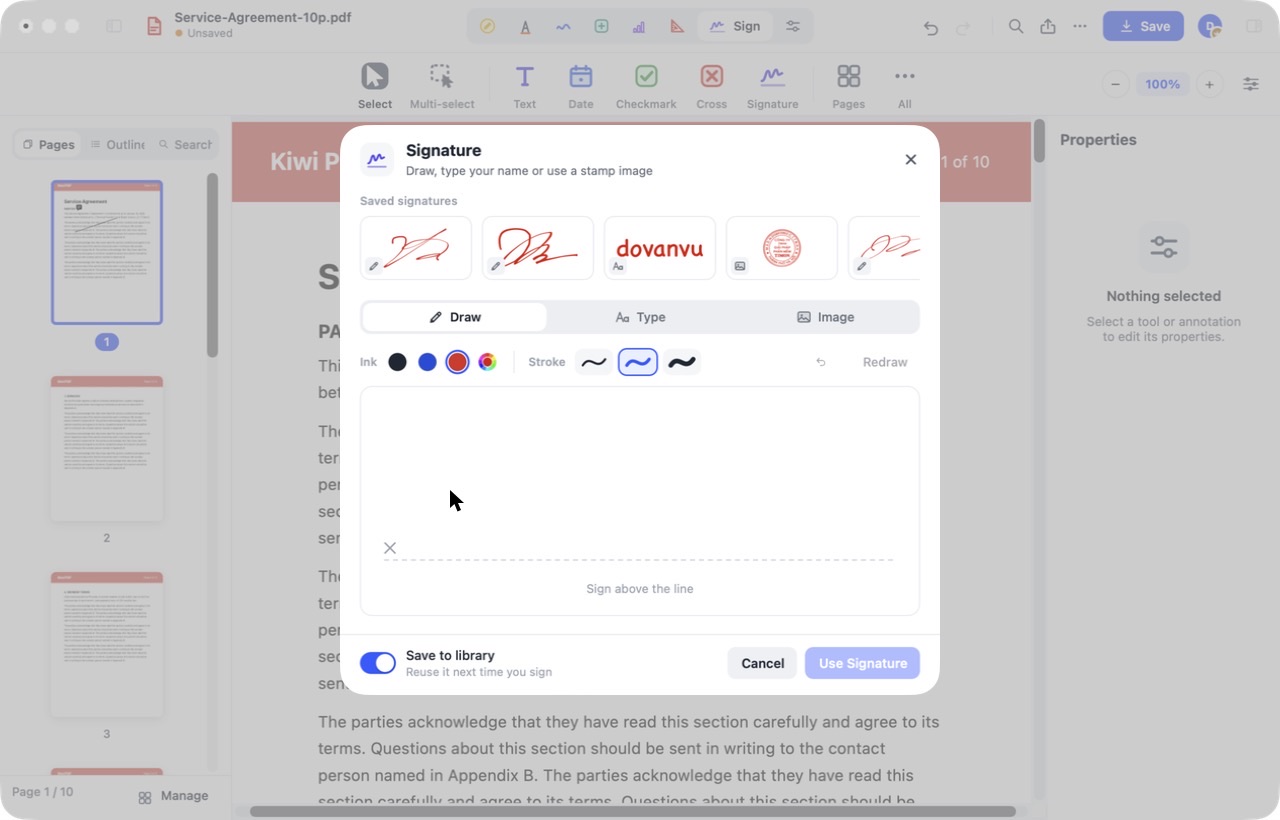
- In the Signature dialog, sign above the dashed line with your mouse or trackpad. Choose an Ink colour (number 2) and a Stroke weight (number 3).
 1234
The signature drawing pad - Click Redraw to start over. When ready, click Use Signature (number 4).
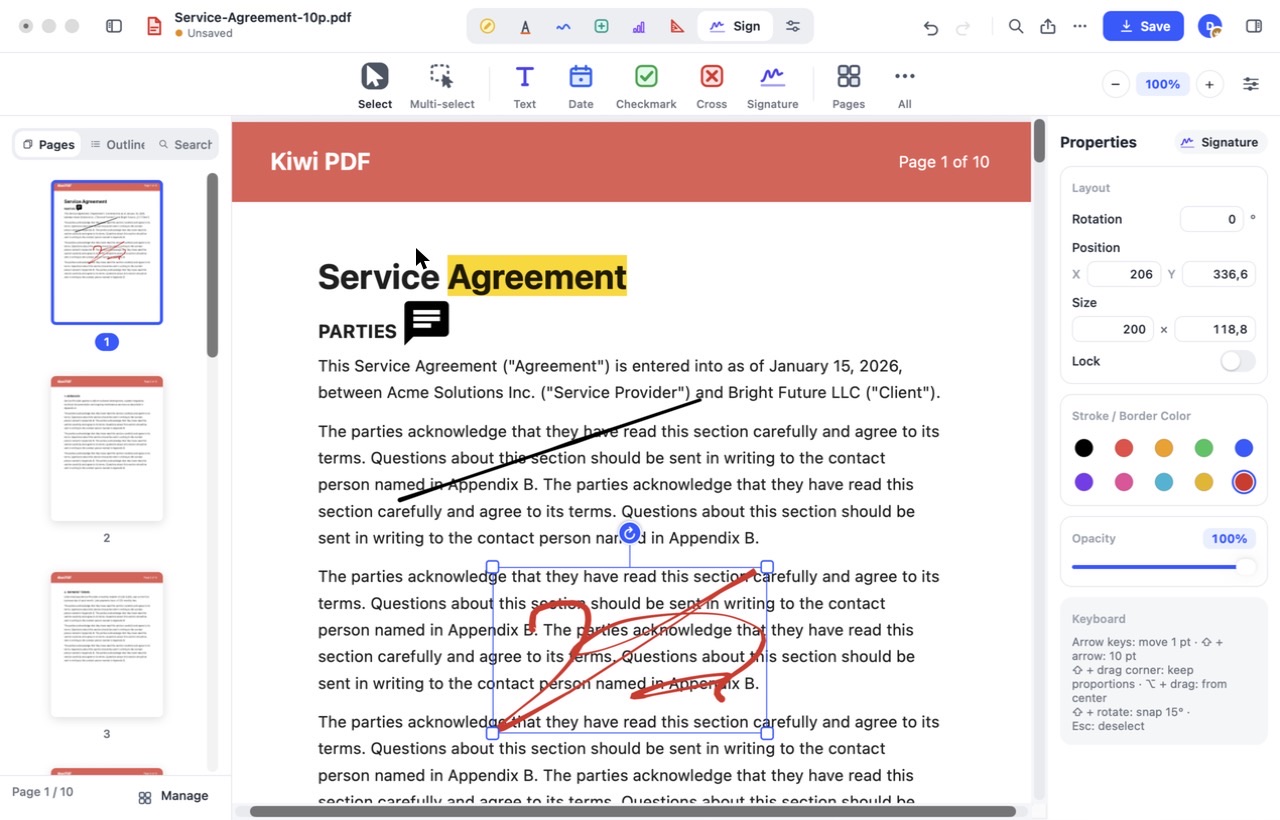
- The signature is placed on the current page. Drag it onto the signature line; drag a corner handle to resize, or the round button to rotate. The Properties panel (number 2) shows position, size and rotation.
 12
A placed signature with selection handles
Press ⌘ Z (Mac) or Ctrl Z to undo.
Reuse a saved signature
- Saved signatures appear at the top of the Signature dialog. Click one to place it without redrawing.
- To remove a saved signature, hover over it and click the small ×.
A Kiwi PDF signature is a handwritten image signature. It is not a certificate-based digital signature.