Help Center › Android › Read PDFs
Reading mode and display options
Switch between scroll directions, background tones and zoom levels for comfortable reading.
Applies to Android 8.0 or later
Kiwi PDF offers several display modes to suit different reading conditions and document types.
Scroll direction
- Open the PDF and tap the Display options button (three sliders) in the middle of the bottom bar.
- Scroll Direction — Vertical scrolls the pages up and down; Horizontal turns them sideways like a book.
- Background — white, sepia or dark page tone for comfortable reading.
- Fit — Fit Width fills the screen edge to edge; Fit Page shows the whole page.
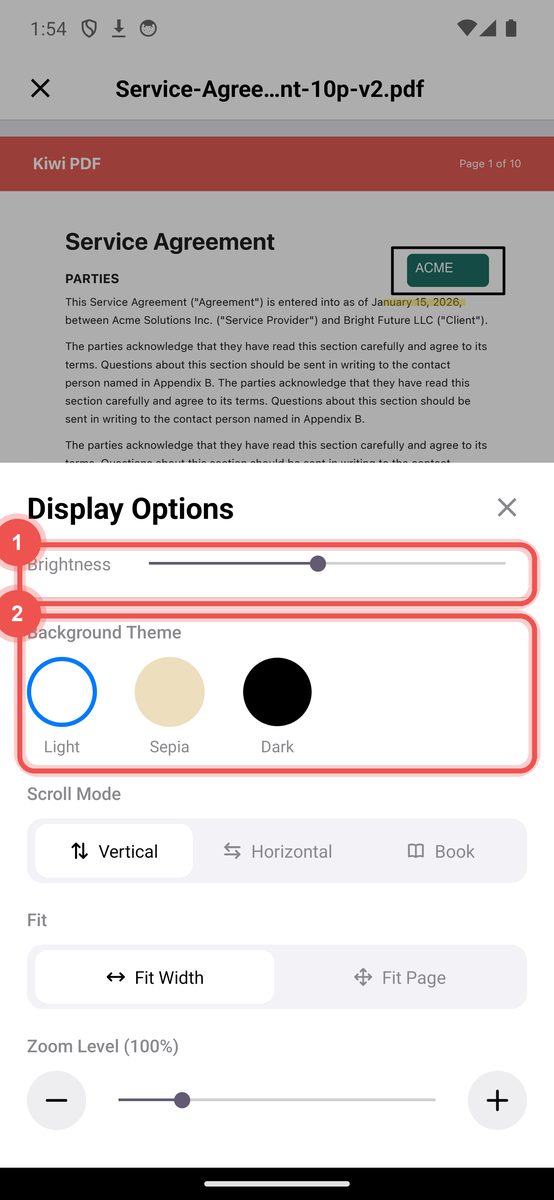
The Display Options sheet
Background colour
Pick one of the three circles under Background in Display Options: white, sepia (warm, easier on the eyes for long reading) or dark (for low light).
The background tone only changes how the page looks on your screen — the PDF file itself is not changed.
Zoom
Pinch to zoom in or out anywhere on the page. Double-tap to fit the page width, then double-tap again to return to the previous zoom level.
Fit to width vs. fit to page
- Fit width — the page fills the screen edge-to-edge horizontally. This is the default and gives the most readable text size.
- Fit page — the entire page is visible at once, useful for checking layout.