Help Center › Windows › Read PDFs
Reading mode and display options
Switch between scroll directions, background tones and zoom levels for comfortable reading.
Applies to Windows 10 or later
Kiwi PDF offers several display modes to suit different reading conditions and document types.
Scroll direction
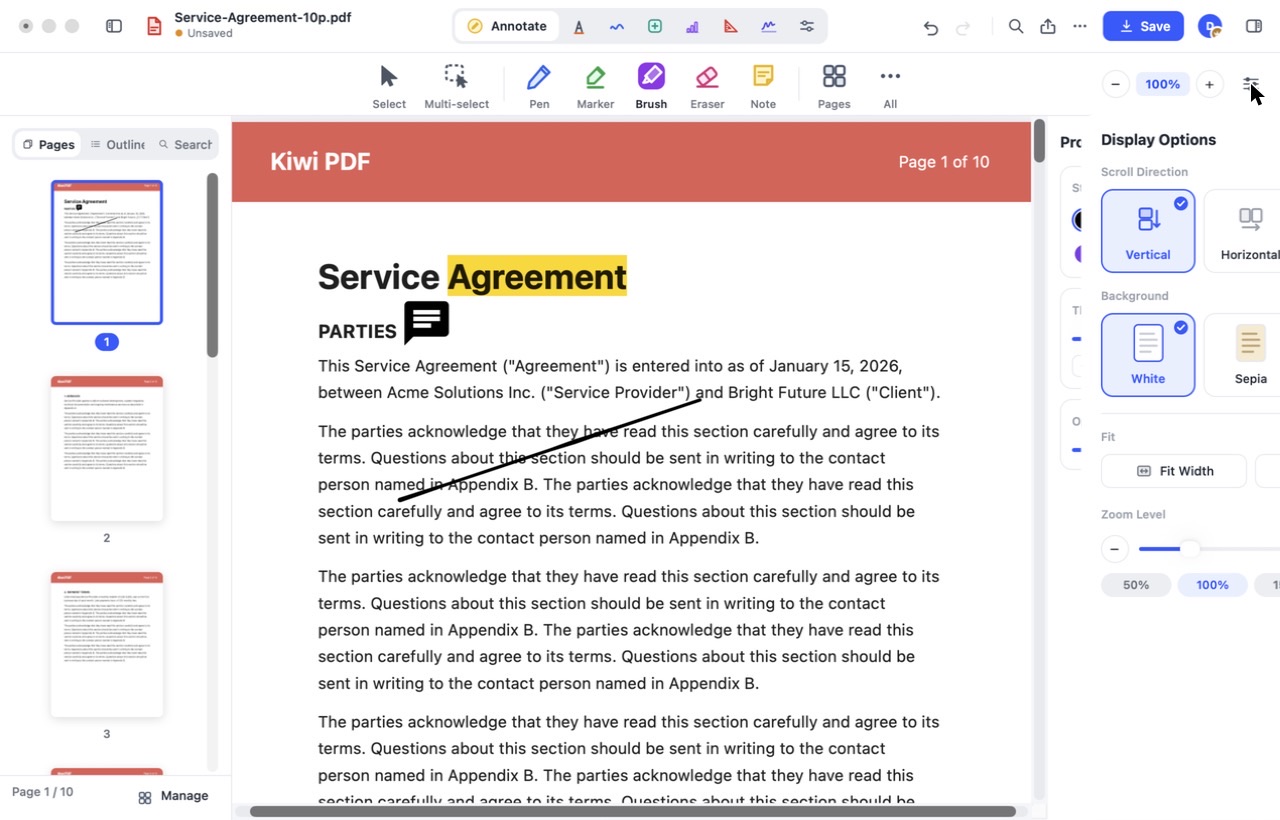
- Click the Display Options button (three sliders icon) in the top-right corner of the toolbar.
- Scroll Direction — choose Vertical or Horizontal.
- Background — pick White, Sepia or Dark.
- Fit Width fills the window edge to edge; use the Zoom slider below it.
 123
The Display Options panel
Background colour
A Dark theme inverts the page for comfortable reading in low light. Toggle it in Display options or via the system appearance setting.
Zoom
Scroll with two fingers while holding ⌘ (Mac) or Ctrl (Windows) to zoom, or use the zoom controls in the toolbar. Press ⌘ 0 / Ctrl 0 to fit the page width.
Fit to width vs. fit to page
- Fit width — the page fills the screen edge-to-edge horizontally. This is the default and gives the most readable text size.
- Fit page — the entire page is visible at once, useful for checking layout.