Help Center › iPhone & iPad › Annotate
Add a text box
Place a free-floating text box anywhere on a PDF page.
Applies to iOS / iPadOS 16 or later
A text box lets you add typed text anywhere on a page — useful for filling blank form fields, leaving a comment or adding a label.
Place a text box
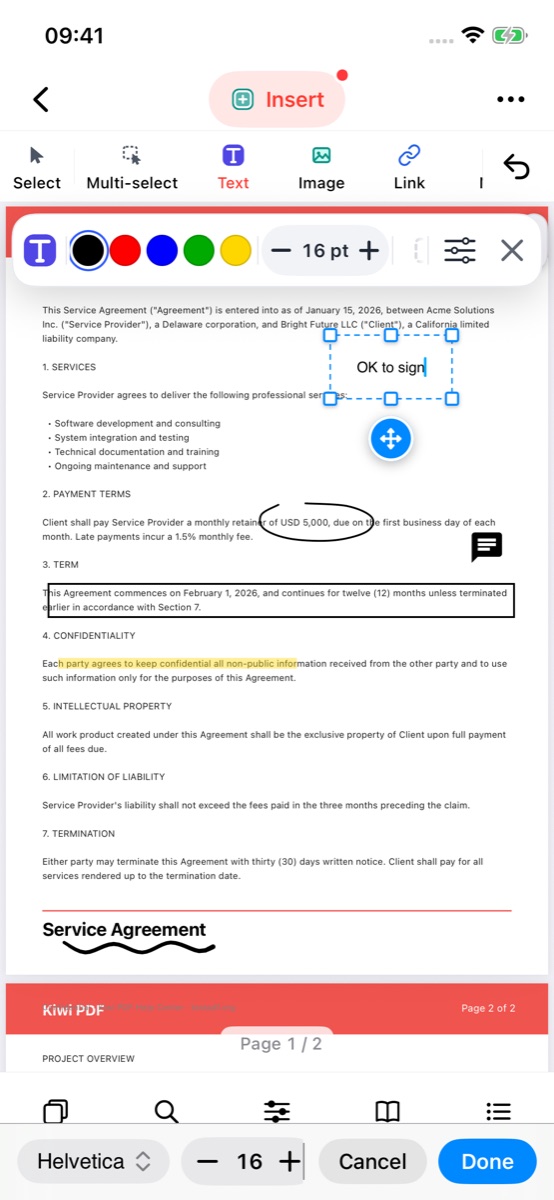
- Choose the Insert tool group (button in the middle of the top bar) and tap Text.
- Tap the spot on the page where the text should start, then type. The box grows as you type.
- Drag the round move button to reposition the box; drag a handle on the frame to make it wider or narrower.
- The bar above the keyboard changes the font and size while you type.
- Tap Done to place the text, or Cancel to drop it.
 12345
Typing in a new text box
Format the text
With the Select tool, tap a text box to select it. Change the colour and size in the Properties bar, or tap for everything else:
- Font — choose from the fonts available on your device.
- Font size — drag the slider or use +/−.
- Bold / Italic — toggle in the properties panel.
- Text colour — tap a swatch or pick a custom colour.
- Background colour — set a fill colour behind the text.
- Border — add a border around the text box.
- Opacity — make the whole annotation semi-transparent.
Resize and move a text box
Select the text box, then drag it to move it, drag a handle on the frame to resize it, or drag the round button above it to rotate it.
To edit the text inside a placed text box, simply double-tap it (mobile) or double-click it (desktop).