Help Center › Windows › Annotate
Add a text box
Place a free-floating text box anywhere on a PDF page.
Applies to Windows 10 or later
A text box lets you add typed text anywhere on a page — useful for filling blank form fields, leaving a comment or adding a label.
Place a text box
- Select the Insert group from the tool group bar, then click Text in the tool row.
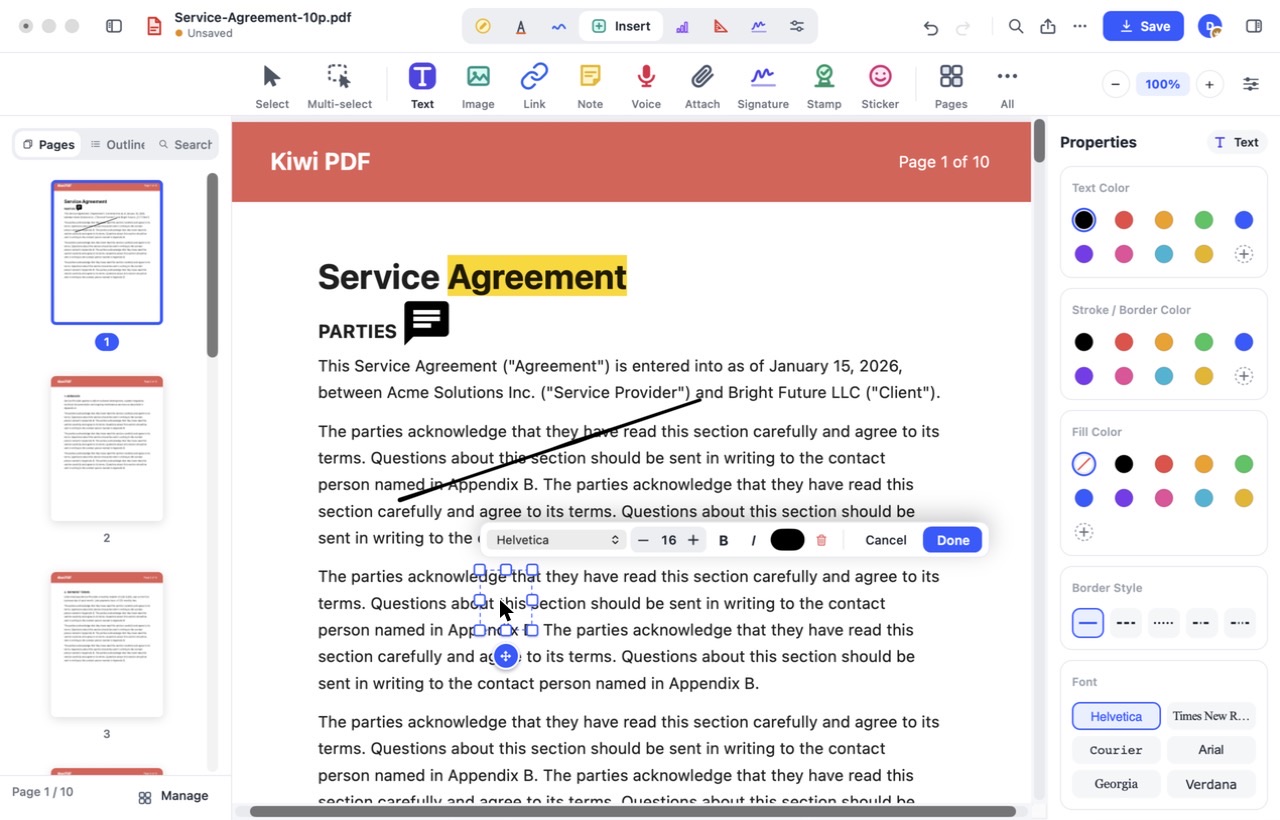
- Click where you want the text. The inline editor opens with a font bar above and 8 handles around the frame.
 1234
Typing in a text box on the Mac - Type your text. Adjust the font, size and style in the font bar or the Properties panel on the right.
- Click Done to place the text, or Cancel to drop it.
Format the text
Select the text box and use the properties panel on the right to change font, size, style, colour, background and border.
Resize and move a text box
Select the text box, then drag it to move it, drag a handle on the frame to resize it, or drag the round button above it to rotate it.
To edit the text inside a placed text box, simply double-tap it (mobile) or double-click it (desktop).