Help Center › Web › Getting started
Editor interface tour
A quick look at the toolbar, tool dock, undo and the main controls.
Applies to A recent Chrome, Edge, Safari or Firefox
Get familiar with the main parts of the Kiwi PDF editor before you start annotating.
iPhone & iPad
Android
Mac
Windows
Web
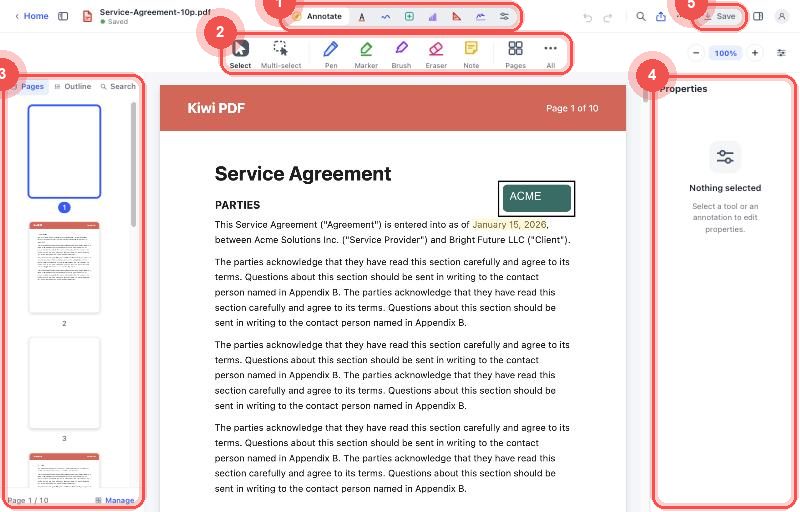
The web editor uses a layout similar to Mac:
Top toolbar — tool group selector, undo/redo, zoom control and export.
Tool row — the row below the toolbar lists all tools in the selected group.
Properties panel — appears on the right when a tool or annotation is selected.
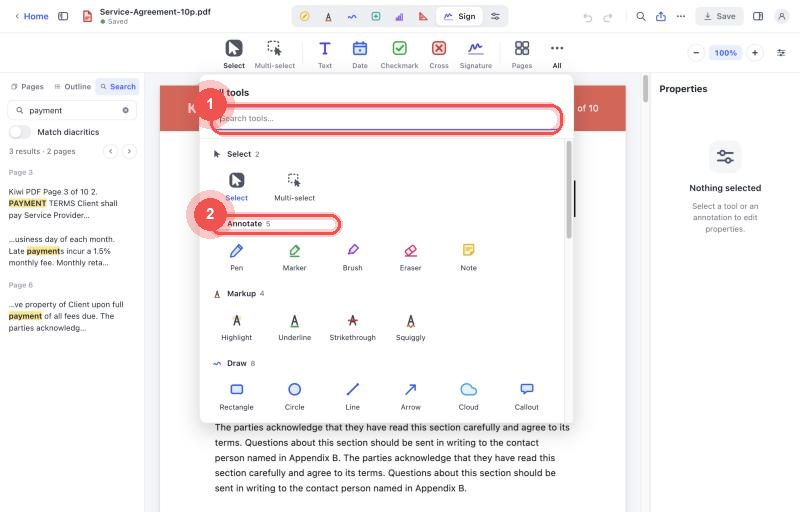
Every tool is also listed in one place — click All at the end of the tool row.
The web editor works best on a desktop or laptop with a mouse. On a tablet you can use touch gestures.
Undo and autosave
Kiwi PDF saves your changes automatically — you never need to press Save. To reverse a change tap (or click) Undo; to bring it back tap Redo. Undo history is kept for the entire editing session.