
Free online PDF editor
Change the actual words and pictures inside a PDF — not just draw on top of it. Open a file in your browser, tap the text you want to fix and type.
Free to start · No sign-up · Works in Chrome, Edge, Safari & Firefox
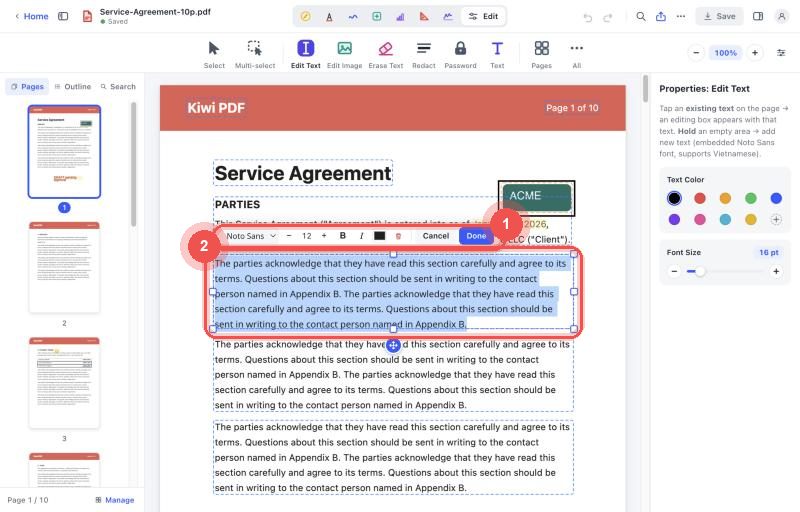
Most free PDF editors only let you add a text box over the page. Kiwi PDF edits the PDF content itself: fix a typo in a contract, update a price in a quote, replace a logo or delete an outdated paragraph, and the result looks as if the document had been created that way. You can also add new text, highlight, draw, sign and fill forms in the same editor, then save a standard PDF that opens correctly in Adobe Acrobat, Preview and every other viewer.
How it works
- Step 1
Open your PDF
Click "Open editor", then drop a PDF or choose one from your computer.
- Step 2
Edit text and images
Choose Edit Text, tap any line and type. Use Edit Image to move, replace or delete pictures.
- Step 3
Save
Click Save. The edited PDF keeps its fonts, layout and links.
Step-by-step guide in the Help Center
Why Kiwi PDF
Real text editing
Rewrite existing words in place, keeping the original font and size where the file allows it.
Image editing
Move, resize, replace or remove images already in the PDF.
Scanned PDFs too
Run OCR on a scan, then correct the recognised text like any other PDF.
Annotate & sign
Highlight, comment, draw shapes and add your signature without switching tools.
Frequently asked questions
Is the PDF editor free?
Opening, reading, annotating, signing, merging, splitting and compressing PDFs are free. Editing the original text and images is part of Kiwi PDF Premium, and every Premium tool is clearly marked.
Can I edit text in a PDF without Adobe Acrobat?
Yes. Kiwi PDF edits the text directly in your browser; the saved file is a normal PDF that Acrobat and other apps open as usual.
Do I need to create an account?
No. You can open the editor and start editing straight away.


