
OCR: turn scanned PDFs into searchable, editable text
A scanned contract is just a picture of text. OCR makes the words real again — searchable, copyable and editable.
Free to start · No sign-up · Works in Chrome, Edge, Safari & Firefox
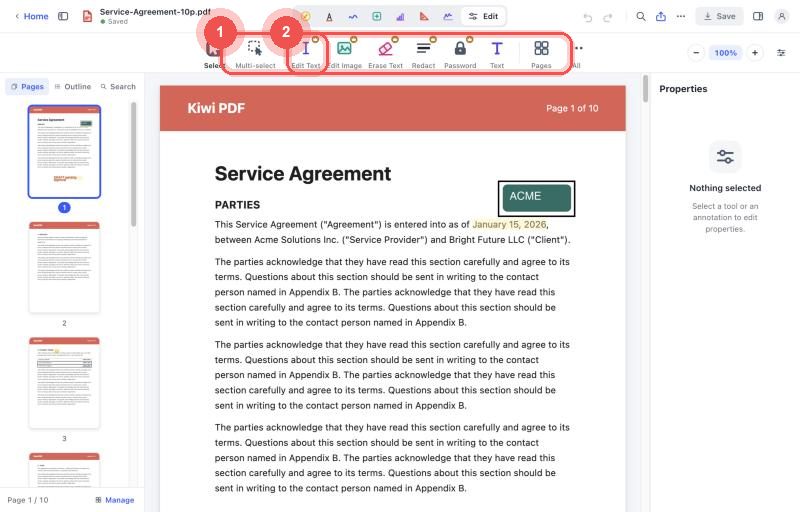
Run OCR on a scanned or photographed PDF and Kiwi PDF recognises the text on each page and adds it to the document. You can then search the file, copy passages and — unlike most OCR tools — correct words directly on the page with the Edit Text tool, so a typo in a scanned document no longer means retyping it.
How it works
- Step 1
Open the scan
Open a scanned or image-based PDF.
- Step 2
Run OCR
Choose OCR and select the pages to recognise.
- Step 3
Search or edit
Search the text, copy it, or fix words with Edit Text, then save.
Step-by-step guide in the Help Center
Why Kiwi PDF
Searchable scans
Find any word in a scanned document.
Copy text
Select and copy recognised text into other apps.
Edit the scan
Correct recognised words right on the page.
English & Vietnamese
Recognises English and Vietnamese text, accents included.
Frequently asked questions
What is OCR?
Optical character recognition turns images of text into real, machine-readable text.
How accurate is it?
Clean, straight scans at 300 dpi give the best results. Blurry or skewed photos may need a few corrections.
Does OCR change how the page looks?
No. The scan looks the same; a text layer is added for search and editing.
Is OCR free?
OCR is part of Kiwi PDF Premium.
Related PDF tools


OCR: turn scanned PDFs into searchable, editable text
Also on iPhone, iPad, Android and Mac