
Convert PDF to JPG or PNG online
Turn PDF pages into images for slides, social posts, chat apps or websites.
Free to start · No sign-up · Works in Chrome, Edge, Safari & Firefox
Choose JPEG for small files or PNG for pixel-perfect quality, set the resolution and pick which pages to export. Kiwi PDF renders each page — including annotations, signatures and filled form fields — exactly as it appears on screen, then saves one image per page.
How it works
- Step 1
Choose PDF to Image
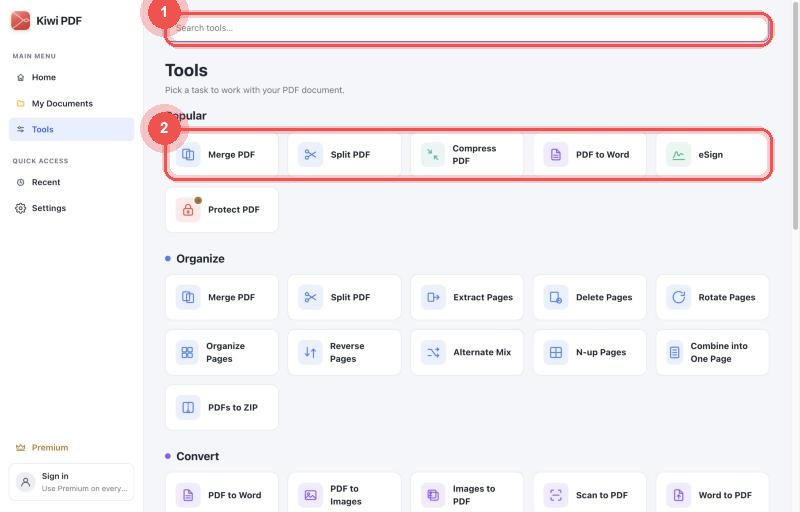
Open the Tools Hub and pick PDF to Image.
- Step 2
Set format and quality
Pick JPG or PNG, the resolution and the pages.
- Step 3
Export
Click Export and save the images.
Step-by-step guide in the Help Center
Why Kiwi PDF
JPG or PNG
Small files or lossless quality — your choice.
Custom resolution
From screen size to print-ready DPI.
Page selection
Export all pages or just the ones you need.
What you see
Annotations, signatures and form values are included.
Frequently asked questions
Is PDF to JPG free?
Yes, converting PDF pages to images is free.
Which resolution should I choose?
150 DPI is fine for screens; use 300 DPI for printing.
Can I convert images back to PDF?
Yes — use the JPG to PDF tool.
Related PDF tools


Convert PDF to JPG or PNG online
Also on iPhone, iPad, Android and Mac