
Redact a PDF: remove sensitive information for good
A black rectangle drawn on top is not redaction — the text is still underneath. Kiwi PDF removes it.
Free to start · No sign-up · Works in Chrome, Edge, Safari & Firefox
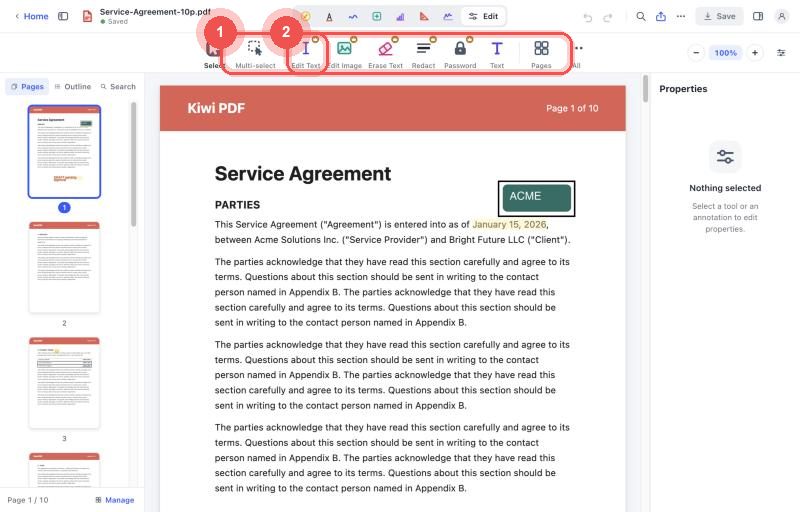
Select an area or search for a word, name or number, and Kiwi PDF permanently deletes the text and images under each redaction mark when you apply it, then draws a black box in its place. Annotations touching the area are removed too, so nothing sensitive can be copied, searched or recovered from the saved file.
How it works
- Step 1
Open the PDF
Open the document that contains sensitive data.
- Step 2
Mark what to hide
Drag over an area, or search for text and mark every match.
- Step 3
Apply and save
Apply the redactions — the content is removed permanently.
Step-by-step guide in the Help Center
Why Kiwi PDF
True removal
Text and images under the mark are deleted, not just covered.
Redact by search
Find every occurrence of a name or number at once.
Area redaction
Black out signatures, photos or any region.
Clean output
Overlapping comments and annotations are removed as well.
Frequently asked questions
Can redacted text be recovered?
No. The underlying content is deleted from the file when you apply redaction.
What is the difference between Redact and Erase Text?
Redact leaves a visible black box to show something was removed; Erase Text removes words without a mark.
Is redaction free?
Redaction is part of Kiwi PDF Premium.
Related PDF tools


Redact a PDF: remove sensitive information for good
Also on iPhone, iPad, Android and Mac